Set the capo and the tuning
Tell FlowChord where your capo is or how your guitar is tuned, so the chords on the video show the shapes your hand plays.
Updated October 22, 2026
A capo moves the nut. With a capo on the 4th fret you play a G shape and the guitar sounds B. The recording only hears B, so without the capo FlowChord names B and draws a B barre chord: right for the sound, wrong for anyone playing along with your video. Tell the project where your capo is, or how your guitar is tuned, and every chord is shown as the shape under your hand.
Before you start
- Open the project in the editor once its analysis has finished.
- Know where your capo was when you recorded, and which tuning you used. Both belong to the whole project, so they are the same in every cut.
Steps
Set the capo
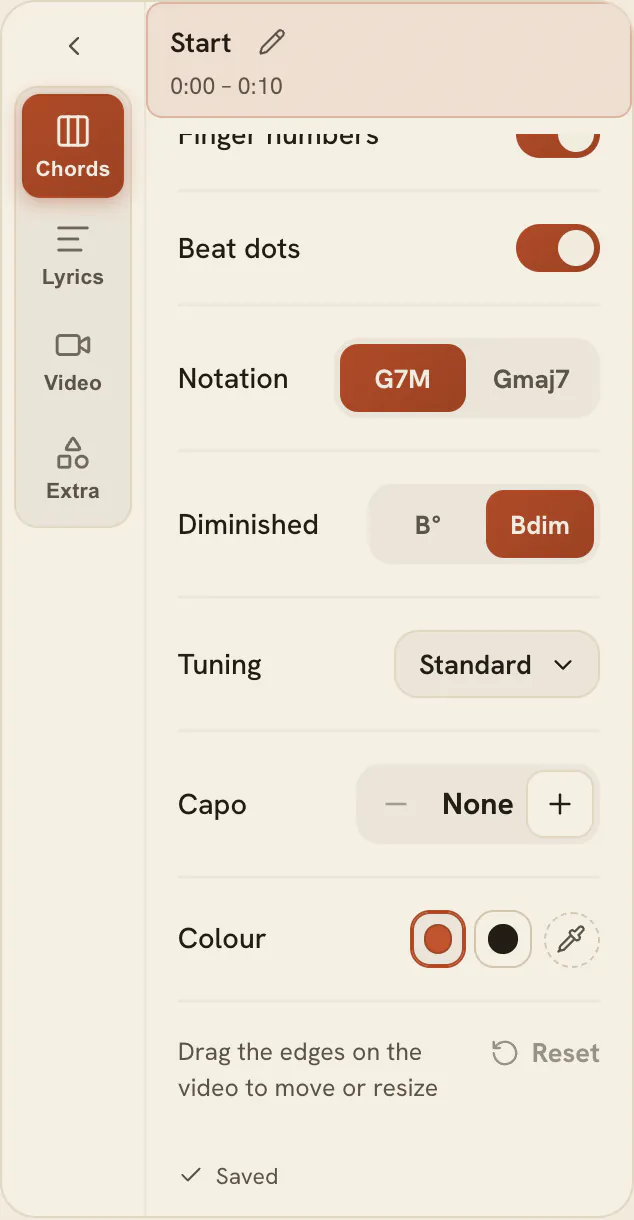
- In the settings card beside the video, open the Chords tab.
- In the Capo row, press Higher fret until it shows the fret your capo is on. Press Lower fret to go back, down to None.
- Check the video: the chords now show the shapes you play, and a CAPO tag beside them tells viewers which fret to put their capo on.
Set the tuning
- In the same tab, open the Tuning row.
- Pick your tuning from the list. Each one shows its strings, from the lowest to the highest.
- The video shows the strings beside the chords, so viewers can tune the same way.
Options
The tunings
| Kind | Tunings | What changes |
|---|---|---|
| Standard | Standard | Nothing: chords are named and drawn as they sound. |
| Every string down | ½ step down, 1 step down, 1½ steps down, 2 steps down | Works like a capo the other way: the chords show the shapes your hand makes, which sit higher than what sounds. |
| Some strings retuned | Drop D, Drop C, Open D, Open E, Open G, Open A, DADGAD, DGCGCD, Nashville | The names stay what the song sounds, and the diagrams show shapes played on those strings. |
You can use a capo and a tuning together. Half a step down with the capo on the 1st fret sounds like a standard guitar, so the names don’t change.
The tag on the video
- It sits over the left end of the chords until you move it. Drag it on the video to put it beside, above or below the chords; double-click it to put it back.
- It takes the colour of the chords (chord style and colour).
- It only shows while the chords are on the video.
Tips
- FlowChord guesses the capo once, the first time you open a project, when the chords clearly look like open shapes played higher up the neck. It tells you with a message, and you can change it in the Capo row. Once you set the capo yourself, even to None, it is never guessed again.
- The tuning is never guessed: the same recording could be a capo on one fret or a guitar tuned down, so only you know.
- The chords keep what the recording sounds. Changing or removing the capo renames nothing for good: it only changes how the names and diagrams are shown.
- With a capo, the chord card shows the shape’s name and, under it, what the chord sounds as. When you search or type a chord, type the shape you play.
Common problems
The capo guess is on the wrong fret. By ear, a capo on the 4th fret playing G shapes and one on the 9th playing D shapes sound alike, and the guess takes the lower fret. Set the right fret in the Capo row.
No capo was guessed. The guess only speaks when it is clear, and never on a project that already says a capo or a tuning. Set it yourself.
A fingering looks different after I changed the capo. A fingering that can’t be played with the capo where it is now (an open string under the capo, for example) is drawn as the usual shape instead. It comes back if you move the capo back.
On a drop or open tuning, my saved chords aren’t offered. Saved chords are shapes for a standard guitar. Use Edit the shape on the chord’s card to draw the shape for those strings (fix a chord).
Was this article helpful?
Still stuck?
Write to us and a person on the FlowChord team will answer by email.
Contact us