Change the chord style, size and colour
Pick how the chords look on your video, how many show at once, how big they are and what colour they take, including one taken from the video.
Updated October 28, 2026
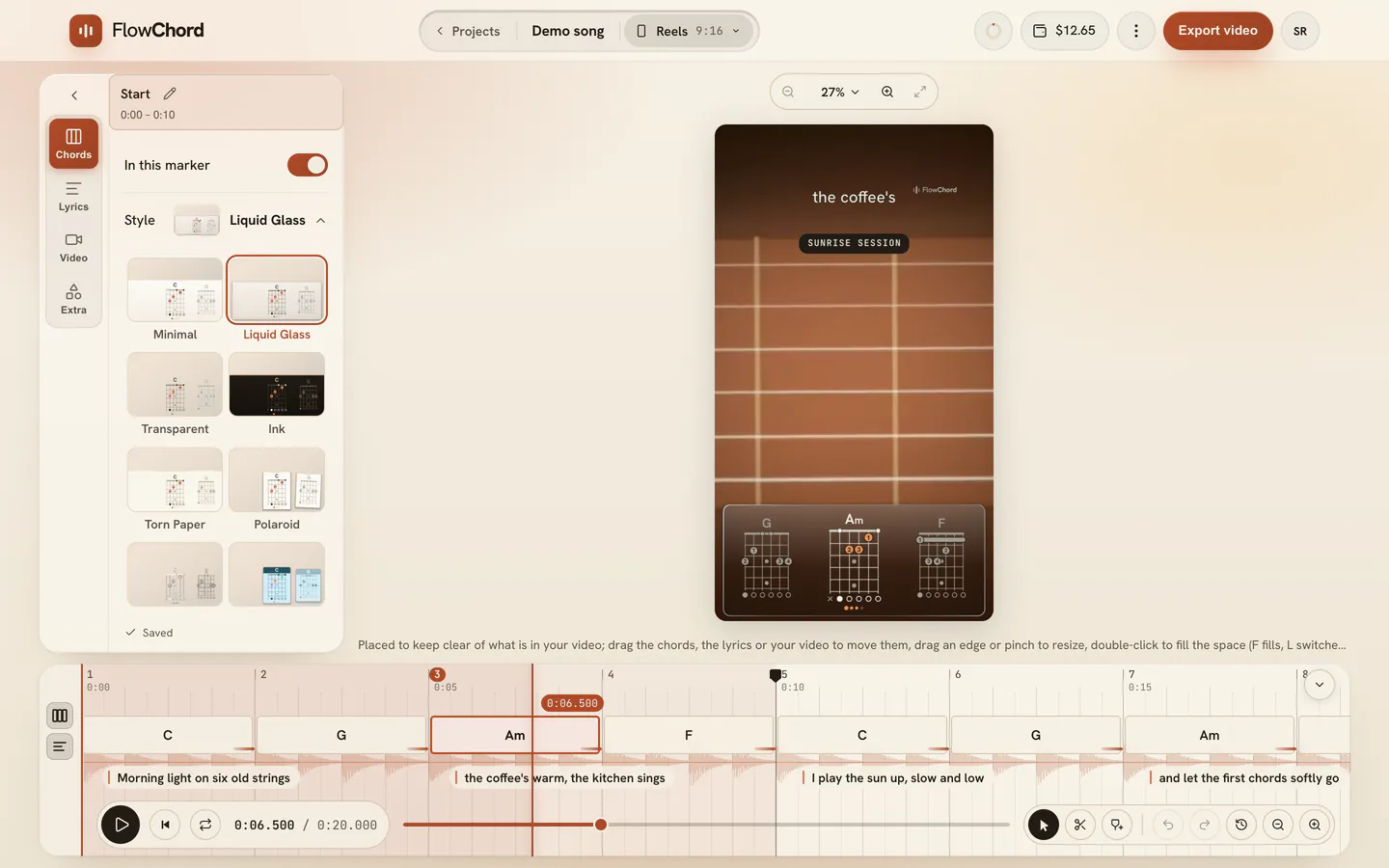
The chords on your video are drawn in a style: a band across the frame, cards, plain lines over the picture, a hand-drawn sketch and more. Pick the one that suits your video, then set how many chords show, how big they are, what they include and their colour. All of it is in the Chords tab of the settings card.
Before you start
- Open the project in the editor. The look of the chords belongs to the cut you are editing, so each cut (a 9:16 one and a 16:9 one, say) can have its own (cuts).
- If the cut has markers, your changes go to the stretch under the playhead (markers).
Steps
Pick a style
- In the settings card beside the video, open the Chords tab.
- Click the Style row. It opens on a tile for every style, drawn over a frame of your own video.
- Click a tile. The video changes at once; click another to compare.
Move and resize the chords
- On the video, drag the chords to where you want them.
- Drag one of their edges to make them bigger or smaller, or use the Size slider in the tab.
- To put them back where they started, press Reset at the end of the tab.
Choose how the chords move
- In the Chord motion row, drag the slider. It stops on five settings, from Very smooth on the left to Fast on the right.
- Watch the next chord change: the video shows the new motion at once, even while it plays.
Every setting lands each chord at the same moment; only the way it travels there changes. The smooth ones start moving a little earlier and glide in; the fast ones wait and arrive in a snap.
Change the colour
- In the Colour row, pick FlowChord or Ink.
- For a colour from your video, press Pick from video (the eyedropper button).
- Click the spot on the video whose colour you want. From the keyboard: Arrows move, Enter takes, Esc cancels.
- Your colour joins the row, so you can go back to it.
For an exact colour, press More colours (the # button at the end of the row): type or paste its HEX code (#E85D2A or #E85), choose it on the colour wheel, or press one of My brand colours — the colours you saved in your brand. The video changes at once, even while it plays. A new project starts with your palette’s main colour when you chose one in your brand.
Options
The rows of the Chords tab
| Row | What it does |
|---|---|
| In this cut | Shows or hides the chords on this cut’s video. The timeline keeps them either way. |
| Style | The chord style. |
| Shown | How many chords across: 1 shows the chord being played, 2 adds the next one, 3 shows the previous, current and next. |
| Size | How big the chords are. |
| Spacing | How far apart the chords sit. Only when more than one chord is shown. |
| Edge to edge | Runs the band from one side of the frame to the other. Only for styles that draw a band, or with an image behind the chords that fits the style. |
| Side margin | How far the chords stay from the sides of the video, up to 15% of its width. The band itself still runs where it runs; the chords slide in and out at the margin. None at first. While you drag the slider, the video shows the strips a phone may cut on a full-screen vertical video: about 5% a side on Instagram, darker, and up to 10% on the tallest phones (TikTok, Shorts), lighter. The row warns you when the chords stand in them. |
| Secondary chords | How visible the chords beside the one being played are, from not at all to fully. The chord being played always shows in full. Each style keeps its own value. Only when more than one chord is shown. |
| Chord motion | How the chords slide from one to the next, from Very smooth to Fast. The chords still land on time. It belongs to the whole project. Only when more than one chord is shown. |
| Diagrams | Off shows the chord names only. |
| Finger numbers | The number of the finger on each dot of the diagram. |
| Beat dots | The dots under the chord being played, one per beat. |
| Appearance | Only with Transparent, which reads its tone from the video: Auto follows the video, Light is for dark videos, Dark for light ones. |
| Colour | The chords’ colour (see below). |
| Chord font | The typeface of the chord names: the style’s own, or one of the faces listed, each shown in itself. The diagrams keep the style’s look. |
| Background | An image of your own behind the chords, in place of the style’s background (put an image behind the chords). Show or hide it, and switch between Fit the style and Keep original. |
The same tab also holds the notation and the capo and tuning, which belong to the whole project: see chord names and capo and tuning.
The styles
| Style | What it looks like |
|---|---|
| Minimal | A clean, light band. |
| Liquid Glass | A frosted glass panel floating over the video. |
| Transparent | No band: the chords drawn straight on the video, light or dark to suit the picture. |
| Ink | A dark band with light lines. |
| Torn Paper | A strip of torn paper across the video. |
| Polaroid | Each chord on its own taped photo card; the one being played straightens up. |
| Outline | White lines on the video, with tall, narrow names. |
| Hearts | Pastel cards with the fingers drawn as hearts. |
| Numbers | For beginners: a plain grid with the finger number where each finger goes. |
| Clean | A clean chart drawn in one colour. |
| Sketch | Chords drawn by hand in chalk. |
| Marker | A band of grained paper, the names written in marker and the chord being played highlighted, like the Marker tab style. |
What the colour paints
In most styles the colour paints the fingers: the dots, the barres and the beat dots. In Clean and Sketch, which are drawn in one colour, it paints the whole chord: name, grid and marks. In Marker it also paints the highlight behind the name of the chord being played. The CAPO tag takes the same colour.
Tips
- New projects start with Transparent. Any style can be changed at any time; nothing about your chords changes with it.
- Projects start with Dynamic, the motion the chords always had. A project preset keeps the motion too, so every video made from it moves the same way.
- The colour you pick is honoured: a see-through style stops reading its colour from the video once you choose one.
- Reset puts back the chords’ position, size, spacing, edge-to-edge width and side margin. It leaves what they show (diagrams, finger numbers, beat dots) as you set it.
- To keep one chord off the video without changing the style, hide it from the timeline (fix a chord).
Common problems
The chords aren’t on the video. The In this cut switch is off for this cut. Turn it on in the Chords tab.
Edge to edge can’t be turned on. The row says This style has no band: only styles that draw a band can stretch across the frame. Your choice is kept for when you pick a style with a band. An image behind the chords set to Fit the style gives any style a band; one set to Keep original keeps its own shape, so the row says An image kept original follows no band.
The chords beside the one being played are too faint. Raise Secondary chords. Some styles, such as Sketch, start them low.
The Spacing row is missing. It only shows when more than one chord is shown at once.
The colour only changed the dots. That’s how most styles use it. Pick Clean or Sketch to colour the whole chord.
The chords cover the lyrics or something in the picture. Drag them on the video, or make them smaller. Reset puts them back where they started.
Was this article helpful?
Still stuck?
Write to us and a person on the FlowChord team will answer by email.
Contact us