Set up your brand
Keep your name, logo and channels in one place, sign every export with your logo, and choose whether sponsors may find you.
Updated October 28, 2026
Your brand is where you keep who you are on your videos: your name and logo, your Instagram, YouTube and TikTok channels, a few optional details about you, and whether sponsors may find you. You fill it in once, outside any project. Your logo can sign every video you export, and the editor uses your logo and channels for your pictures and social cards.
Before you start
- Sign in to FlowChord. Your brand belongs to your account, not to a project.
- For the logo, have a PNG, JPG, WebP, SVG or PDF file ready on your device. An SVG or PDF is turned into a picture on your device before it is saved.
Steps
Open your brand
- Press Brand in the bar at the top of any page.
- The page opens on your brand: a list of its sections on the left, and the sections one under the other beside it.
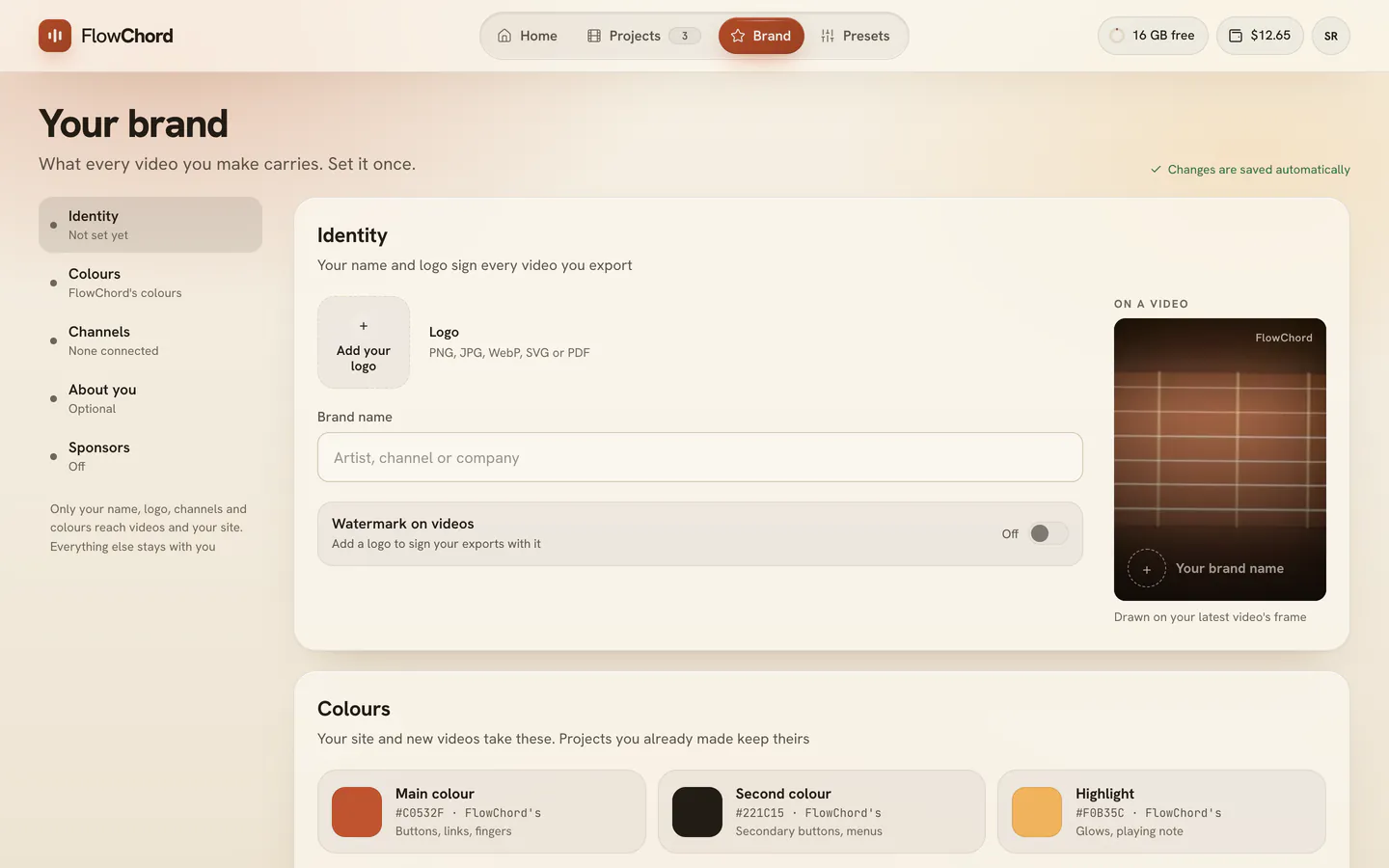
The list on the left — Identity, Colours, Channels, About you and Sponsors — takes you to each section, and says under each name how far it is set (Main colour set, Optional, Off…). On a phone or a narrow window there is no list: the sections follow one another. The page saves itself: there is no Save button. A field is kept when you leave it, and a choice or a switch the moment you make it. The line at the top says Changes are saved automatically, then Saving… and Saved as it keeps what you gave. A field that doesn’t read right (a website, the business e-mail, the phone) says why and is not kept until it does.
Add your name and logo
In Identity:
- Press Add your logo and pick your picture. It is kept as soon as you pick it. Use Replace or Remove to change it later.
- Type your Brand name.
- If your logo sits on a plain colour square (white, for example), press Remove background under the name. You see your logo with and without its background, and Remove keeps the one without it. It is done on your device. The button only appears when the logo has a plain background around it.
Sign your videos with your logo
Under your name and logo, Watermark on videos puts your logo, small and semi-transparent, in the bottom-right corner of every video you export: new projects and the ones you already have, in every cut. It is on as soon as you have a logo; turn the switch off and your exports carry no logo of yours. Until you add a logo, the switch can’t be turned on.
Your logo watermark is apart from the FlowChord watermark: the FlowChord one stays in its own corner and is drawn over yours. The first time you open a cut in the editor, your logo watermark is put into it as an element of its own, Your watermark: you can drag it on the video, resize it, or delete it from the list of elements like any picture, and what you do stays with that cut.
Choose your palette
Colours starts with three colours: Main colour, Second colour and Highlight. Each shows its HEX code, whose it is, and in a few words where it goes. Each one is FlowChord’s until you choose yours, and says FlowChord's until then. While you leave the highlight as it is, it says Follows Main colour.
- Press one of the three colours.
- Under From your colours, press one of your colours, or press FlowChord's to give the colour back to FlowChord (Follow Main colour for the highlight, once your main colour is yours). Under Or a new one, type or paste a HEX code, or choose one on the colour wheel: a new code is added to your colours.
- The window shows your choice on a light page and a dark one, and says whether FlowChord has to show it a little darker or lighter there so it reads.
- Press Save.
Under Preview, three pictures always side by side show the colours as they will be seen: Your site, light and Your site, dark, each a small browser window at your site’s address, and A new video. What uses them:
- New projects. The main colour paints the chord fingers, and the highlight the note being played in a tab, in every cut of a project you make from then on. A preset that has its own colours keeps them. Projects you already made keep their colours, and you can change a new project’s colours in the editor like any other.
- Your site. The main colour is on its buttons, links and focus, the second colour on its secondary buttons and menus, and the highlight in its glows, on every template and in both light and dark.
Your words must stay easy to read. When a colour would be hard to read on a light or a dark page, FlowChord shows it a little darker or lighter there and says so under that window (Your main colour is shown a little darker here, so it reads); otherwise it says Shown as you chose it. Your colour itself is kept as you chose it. Restore FlowChord's, at the top of the section, gives all three back to FlowChord after you confirm; your colours stay in the list.
Save your brand’s colours
Under the three colours, More colours keeps up to 8 colours of your brand, so you can pick them in the editor with one press instead of typing their codes every time.
- Press Add colour.
- Type or paste the colour’s HEX code (
#E85D2A, or the short#E85), or press the round swatch beside it to choose it on a colour wheel. - Give it a name if you like (Main, Text, Accent…), then press Save.
Your colours sit in a row of round swatches, in your order, beside Add colour. Press a swatch (Colour options) to see its code and name, with Edit, Move earlier and Move later to change their order, and Remove, which asks you to confirm. The same colour is kept once.
Your colours are also in the editor, so you can pick them anywhere. Changing or removing a colour here leaves every video that already uses it as it is. Removing the colour your palette uses gives that place back to FlowChord.
Connect your channels
In Channels, there is one row each for Instagram, YouTube and TikTok.
- Press Connect on a row.
- In the window that opens, paste your profile’s link or type your @handle. That is all it asks.
- Press Save. The window stays open while FlowChord asks the platform, and closes when it is done.
What each platform shares:
- Instagram, through Meta’s official API, shares the name, picture and follower count of business and creator accounts only.
- YouTube, through its official Data API, shares the channel’s name, picture and subscriber count.
- TikTok shares nothing with apps: its row shows your @handle, without a count.
The count is always the platform’s, never typed by hand. A connected row shows it with when it was read (Synced today, or a date); after 30 days it says when it was last synced, as outdated. The ↻ button (Update) reads it again.
The ⋯ button (More options) has Edit, Open profile and Remove. Removing a channel asks you to confirm; videos keep the cards they already have.
Tell us about you
About you is marked Optional: fill in what you like, or nothing. It is never shown on your videos.
- I am a: pick what describes you. Press it again to clear it.
- Music you play: your styles show as chips. Type in Add style and pick a style to add it, up to 6; press × on a chip to take it out. Once you have 6, take one out to add another.
- About: a line or two about you and what you post.
- Based in: search for your country and pick it.
- Content language: the language of what you post.
- Website: your site’s address.
Choose whether brands may find you
FlowChord may connect artists with brands looking for partners. Sponsors, the last section, says what it is on one side and how sponsors reach you on the other:
- Read what it says, what a sponsor sees (What sponsors see), and Read the terms, which opens the Privacy Policy.
- Turn on Show me to sponsors if you agree. It is off until you turn it on, and it is kept the moment it moves. The line beside it says since when it is on or off.
- To stop, turn it off and press Revoke. You can do it, and turn it on again, at any time.
Under How sponsors reach you, marked Private, fill in Contact name, Business e-mail and Phone, with the phone’s country. They are private. Beside the e-mail’s and the phone’s labels, Share with sponsors lets interested sponsors have that contact once the switch is on; each works only when that contact is filled in.
Saving your brand is never an authorization: only the switch is.
See what your videos carry
In Identity, beside your name and logo, On a video shows your logo, your name and a channel’s @handle on your latest project’s picture, as a video carries them, with your logo watermark in its corner when it is on. Only your name, logo, channels and colours reach your videos and your site; everything else stays with you.
Use your brand in a video
In the editor’s Extra tab, under Elements:
- Press Add element and choose My logo to put your logo on the video as a picture you can place and time. It is in the menu once you have a logo, and it becomes a picture of the project, like any image you add.
- Press Add element and choose Instagram card or YouTube card: when you connected that channel here, the link starts with it.
See text, images and social cards for everything a card or a picture can do.
Tips
- In the editor, every colour row has a More colours button (#) with My brand colours: one press puts that colour on what you are editing, and on nothing else.
- Change your brand at any time. A card or a logo picture already in a project keeps its own copy and is never rewritten: in the element’s settings, Update from brand or Use current logo brings in the new one when you press it. A cut you have not opened yet takes your current logo when you open it.
- A card shows the follower or subscriber count only when you turn on Show followers or Show subscribers in its settings, and only a count the platform answered.
Common problems
Instagram shows no followers. Instagram shares the audience of business and creator accounts only. Switch the account to one of those in Instagram, then press ↻ (Update).
It says the platform could not be asked. Instagram or YouTube didn’t answer this time. Your channel is kept; press ↻ (Update) later.
My count is outdated. It was read more than 30 days ago. Press ↻ (Update).
The logo wasn’t accepted. Use a PNG, JPG, WebP, SVG or PDF file. A logo that came as a .zip or .rar is a compressed folder: open it first and pick the logo inside.
My export has no logo watermark. It needs a logo and Watermark on videos switched on. Check both here, then export again.
I changed my logo and my video’s picture still has the old one. That’s expected: a picture added with My logo keeps the logo it was given. Select the picture and press Use current logo.
Was this article helpful?
Still stuck?
Write to us and a person on the FlowChord team will answer by email.
Contact us