Start new projects with your own presets
Save a project's cuts and looks as a preset, and start your next projects from it with your formats, lengths and styles already set.
Updated October 28, 2026
A preset keeps how you like to make your videos: the cuts a project starts with — their shapes and lengths — and each cut’s look, from the chord and lyric styles to the video’s frame and filter. Save one from a project you’re happy with, and the next project starts already set up: add your files and get to work.
Before you start
- Make a project the way you like it: its cuts, their lengths, the chord style and colour, the lyric style, the video’s frame and filter, the song card, the text you put on the video. See Make several videos from one project with cuts.
- A preset never holds the song itself. Your files, chords, lyrics and tab stay with their project.
Steps
Save a project as a preset
- Open the project and press the project’s menu (⋮) next to the export button.
- Press Save as preset. The dialog says what the preset will keep.
- Under Save to, keep A new preset and type a Preset name, such as “Instagram Reels” or “YouTube”.
- Tick Start new projects from it if new projects should start from it. Your first preset is ticked for you.
- Press Save preset.
Start a project from a preset
- Create a project as usual (Create a project).
- Under Start from, your default preset is already picked: the cuts under your main video are the preset’s, with their names, lengths and looks. With no default preset of your own, FlowChord’s Chords and lyrics is picked instead. To use another, press the picker and choose a preset, or one of FlowChord’s — Chords and lyrics, Lyrics and, where FlowChord makes the guitar tab, Lyrics and tab or Everything — to start with FlowChord’s looks, showing just that.
- Add your files and change anything you like, as in any project. Then press Create project.
The picker also offers to start like your last project: its cuts and looks, even if you never saved them as a preset.
Update a preset
- Open a project whose cuts and looks you want the preset to have.
- Press Save as preset in the project’s menu.
- Under Save to, pick the preset to replace, press Save preset, then Replace.
Rename, copy or delete a preset
- Press Presets in the bar at the top of any page. Each preset is a card: a small stage with where its chords sit, its name, chips for its cuts, styles and notation, and under them how many projects were made from it and when it was saved. The preset new projects start from carries Default.
- Press the menu (⋮) of a preset and choose Make default (or Remove as default), Rename, Duplicate or Delete.
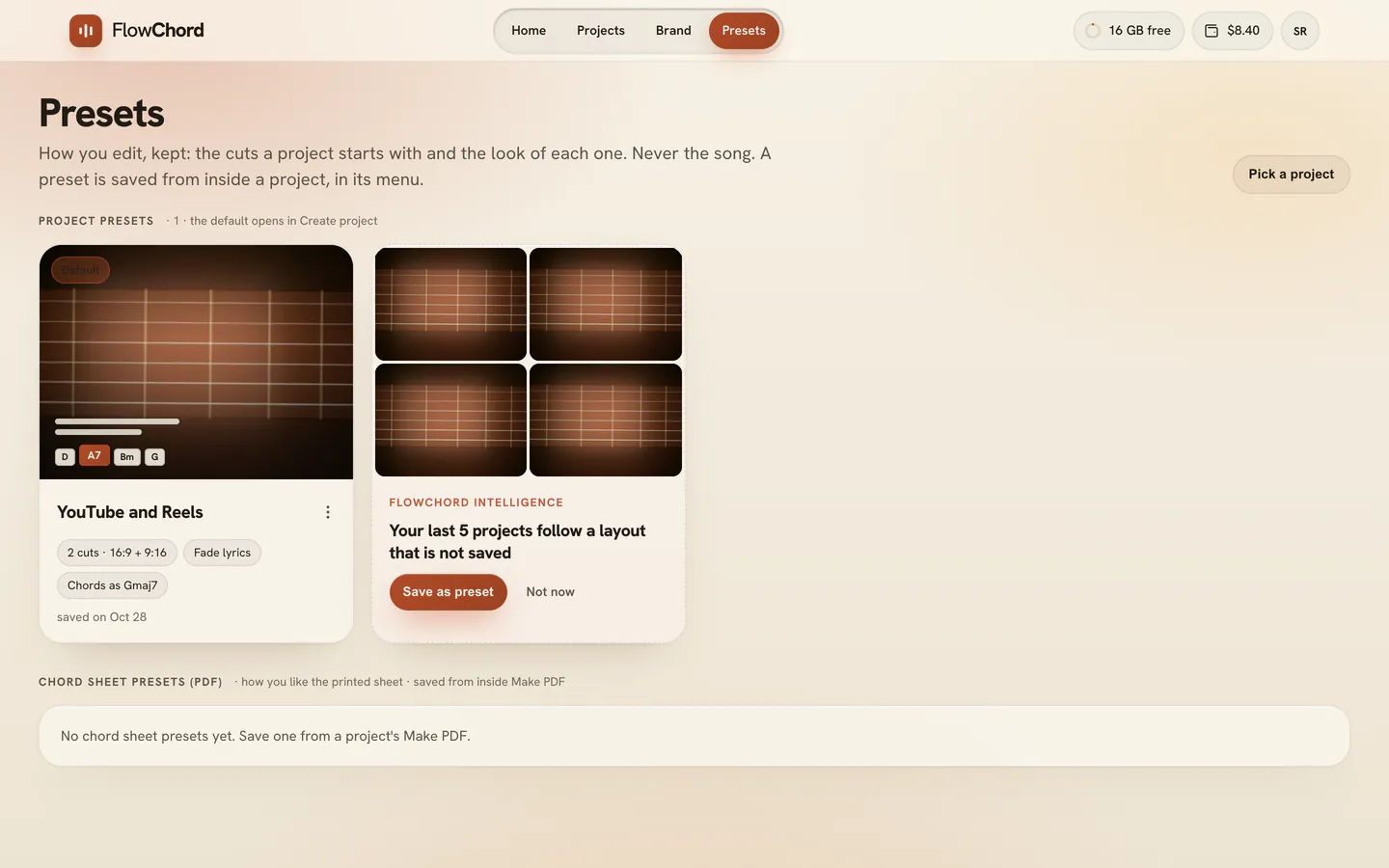
When your last projects share a look no preset keeps, FlowChord Intelligence offers it here as a dashed card: Save as preset saves it from your latest project, Not now puts the suggestion away. The page also lists your chord sheet presets, saved from Make PDF in a project (chord sheet). Each one’s menu (⋮) offers Rename, Duplicate and Delete, and Make PDF lists them as you leave them. A preset is always made from a project, never here: Pick a project takes you to your projects.
Options
| A preset keeps | A preset never keeps |
|---|---|
| Each cut: its name, shape and length | The song’s files: videos, audio, chord sheets, tabs |
| The chord style, colour and size, and where the chords sit | The chords, lyrics and notes of the song |
| The lyric style, colour, size and place | The song’s name, artist, year and cover |
| The video’s frame and filter, and how two videos share the frame | Where the video is cropped, which belongs to that footage |
| The song card’s style and timing, and the background | A photo of the project used as the background |
| Text and account cards shown for the whole video, and the watermark | Pictures, and anything timed to a moment of the song |
| How chord names are written | The capo, the tuning and the markers |
A short cut keeps its length, not its window: in each new song FlowChord finds the best part again.
Tips
- A project made from a preset is its own: changing or deleting the preset later never changes it, and changing the project never changes the preset.
- Keep one preset per place you post: a vertical Reel and Story for Instagram, a wide cut of the whole song for YouTube.
- You can keep up to 30 presets.
- A preset saved from a project made from another preset is a new preset of its own.
Common problems
I don’t see Start from when I create a project. It appears once you have a preset or a project to start from.
A cut came out at the whole song. A preset’s length is kept only when the new song is longer than it.
My picture or timed text didn’t come along. They belong to the song they were made for. Add them again in the new project’s Extra tab (elements).
I can’t save another preset. You have 30 already. Replace one, or delete one you don’t use.
Was this article helpful?
Still stuck?
Write to us and a person on the FlowChord team will answer by email.
Contact us