Create a project
Start a chord video from your recording — the project types, dropping in every file at once, how FlowChord sorts them, the cuts and what it costs.
Updated October 28, 2026
A project is one performance of one song: the video of you playing, any other cameras or audio from the same take, and, if you have one, your chord sheet. You create it once, FlowChord listens to it, and the editor opens with the chords and lyrics already on the video. This article walks through the Standard project, for files you already have.
Prefer to watch? This tutorial goes through it all, from choosing the type to the cuts:
Before you start
- Have your recording on this device: a video, an audio file, or both. A project can be sound only.
- Use a recent browser on a computer or a phone (which browsers work).
- The dialog says what the song costs before anything is analysed. Your account has one free video, of which FlowChord hears the first 30 seconds (how pricing works).
Steps
Choose the type
- In your projects (Projects in the bar at the top), press Create project.
- Under What type of project do you want to create?, pick Standard.
- Press Continue.
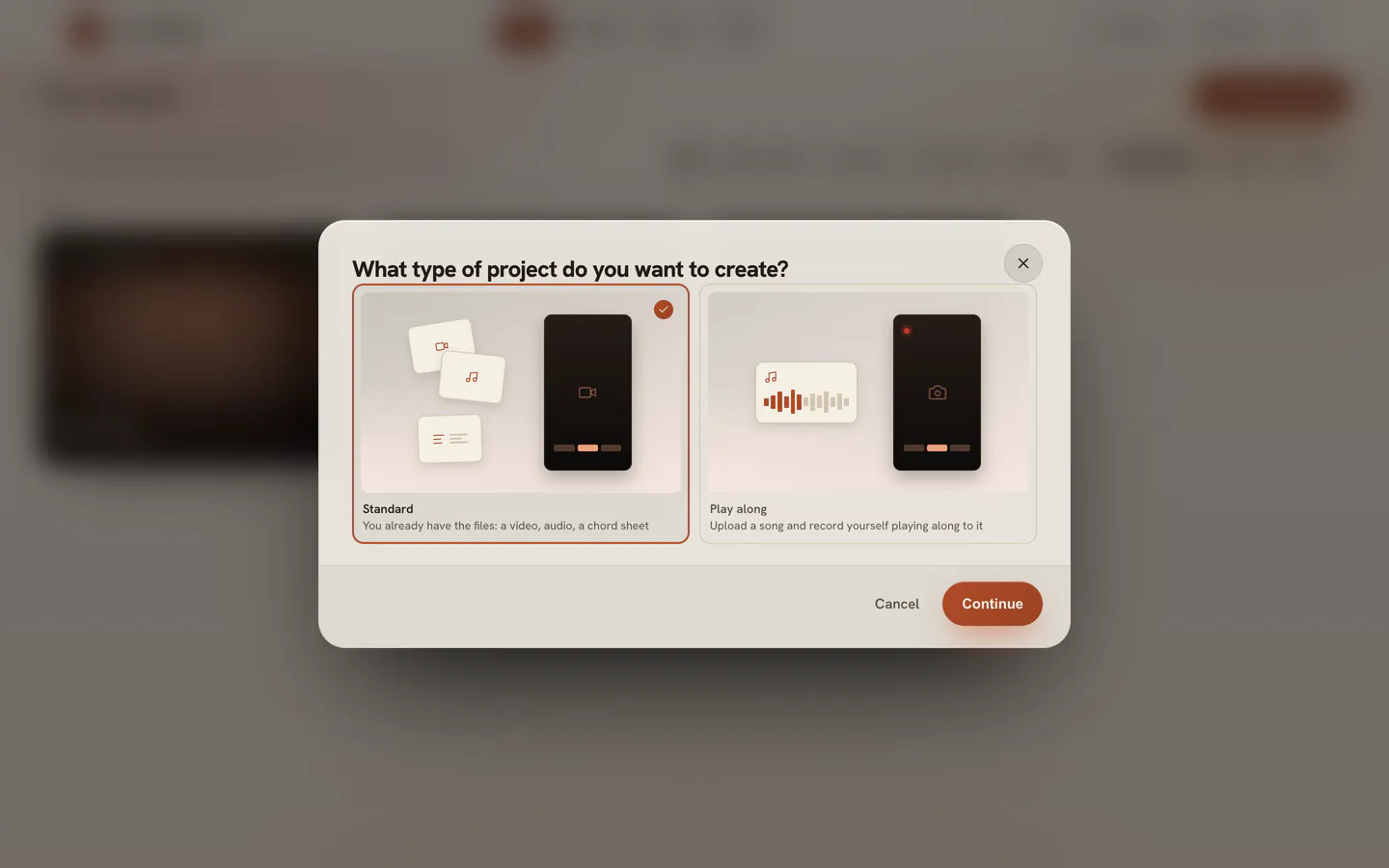
To record yourself playing along to a song instead, pick Play along (record a Play Along).
Add your files
- Drop everything you have for the song anywhere on the dialog, or press Choose files: the video of you playing, other angles or a recorder’s audio of the same take, your chord sheet (a text file, a PDF or a photo of the page), a Guitar Pro or MusicXML tab, or a screenshot of one. You can add them all at once, and paste a file or a chord sheet’s text with Ctrl+V (⌘+V on a Mac).
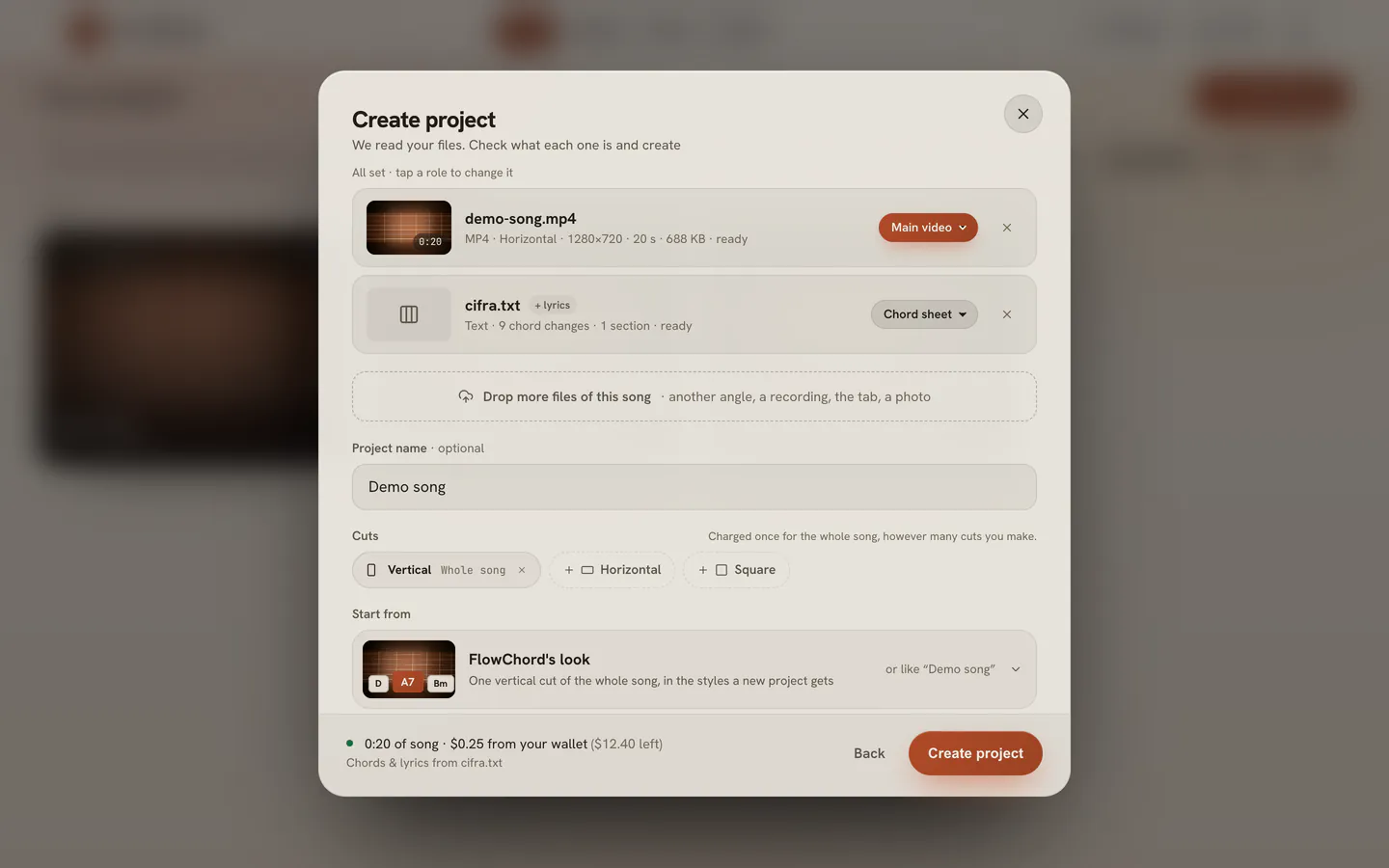
- Each file becomes a card: its picture, its name, a line with what FlowChord read in it (a video’s length and size, a sheet’s chord changes and sections, a tab’s bars) and, at its end, a pill with its role — Main video, in rust, the one the cuts are made of; Soundtrack, Chord sheet and so on. Nothing is uploaded yet.
- If a pill is wrong, press it and pick what the file is for, or Not used to leave it out.
- When FlowChord had to choose for you — a second video, or an audio file beside the video — the question stands under that file as one sentence, with FlowChord’s choice already applied as the cream button and the other answers beside it, quiet. Press the cream button to keep it, or another answer.
- Check the name under Project name. FlowChord suggests one from your files and the field says where it came from — read from the sheet, read from the score or read from the files. Type another if you like; left empty, the project is called Untitled project.
- To add a file you forgot, press Drop more files of this song under the list, or drop it on the dialog again.
Choose your cuts
The cuts appear under the main video as chips as soon as it has been read: one vertical cut of the whole song, and a dashed chip for each shape still to add. Start from, above them, says what the video shows. FlowChord’s presets are Chords and lyrics (the one a new project starts with), Lyrics and, where FlowChord makes the guitar tab, Lyrics and tab and Everything. With a default preset of your own the cuts start as that preset’s instead, and the picker also offers your other presets and the looks of your last project (presets). Whatever you pick, everything is made — the chords, the lyrics and, where it is offered, the tab: what the video leaves off is ready to turn on in the editor, with nothing made again. On the Creator plan a Smart Edits row sits under it: on by default, with the style FlowChord lays its edits in (Smart Edits).
- Press a dashed chip to add that shape: Vertical, Horizontal or Square. Each chip is a cut of the project; its × removes it.
- Press a cut’s chip to open its length and what it shows. Under Length, choose Whole song or a shorter length. A short cut starts on what FlowChord finds to be the best part of the song; drag the window on the song’s strip, under the chips, to move it, or drag its edges to change its length (cuts).
- Under Shows, change what the cut shows: Chords, Lyrics and Tabs — a lyrics video leaves the chords off. The editor opens as soon as what your cuts show is ready, so a lyrics video doesn’t wait for the chords. Everything is still made for the project: what a cut leaves off arrives later, with its In this cut switch off in the editor, ready to turn on (cuts).
- Read the sentence at the foot of the dialog, with a dot beside it: how long the song is and what it costs from your wallet, with what is left after — or that this is your free video — and, under it, where the chords and lyrics will come from.
- Press Create project.
The dialog stays busy for a moment while room is made for your files, then the project opens on its Preparing screen (what happens next).
Options
| What you add | File types | What FlowChord does with it |
|---|---|---|
| Video | MP4, WebM, OGG or MOV | The first is the Main video, the one the cuts are made of. Any other video is Another angle of the same take. |
| Audio | MP3, M4A, AAC, WAV, OGG, Opus, FLAC | Beside a video: Soundtrack when it lasts as long as the video (it is heard instead of the video’s own sound), else Reference audio (only listened to for the chords). With no video, the first audio file is the song. |
| Chord sheet | PDF, TXT, PNG, JPG or WebP | Your chords and words, kept as written. A sheet with words but no chords gives the lyrics, and FlowChord finds the chords. |
| Tab | Guitar Pro (.gp, .gp3–.gp5, .gpx), MusicXML, a text tab, or pictures of a tab (PNG, JPG or WebP — up to 8, read in the order they were taken) | A file’s title, tempo, tuning and capo are shown under the name. A picture’s card shows only the tab staves found in it: it is copied once the project is created (how). Kept with the project. |
| Sheet music | A photo or PDF of standard notation with no tab under it | Kept, but not read yet. |
One of each is read
FlowChord reads one chord sheet. If you add two, the clearest one is used — a text file before a PDF, a PDF before a photo — and the other is kept as Not used. Press the badge of the one you want to swap them.
Where the chords come from
There is nothing to choose. With a chord sheet, the chord names and the words come from it, and FlowChord still listens to the recording to place each chord where you play it. Without one, FlowChord listens to the recording and writes out the chords and the lyrics. The line under the charge, at the foot of the dialog, says which, before you press Create project. The chords are heard from the audio file beside the video when there is one, else from the main video.
Your files are made smaller first
Before anything is uploaded, your browser makes each file only as large as the project can use: a camera’s 4K video or a studio WAV takes much less room once prepared. The file you picked never leaves your device. A stored video can be up to 800 MB and an audio file up to 100 MB; a larger file is accepted when it can be made to fit.
What it costs
The project is charged once, for the whole length of the recording the chords are heard from, however many cuts you make. The sentence at the foot of the dialog says the amount before you press Create project. When your balance does not cover the song and your free video is unused, the project becomes your free video: the sentence says so and offers Add funds instead. Without a free video, pressing Create project opens Add funds first, and the project is created once the money arrives (add funds). When the balance cannot pay even the shortest song and there is no free video, Add funds opens as soon as you press Continue, and the dialog opens once the money arrives.
Tips
- With no projects yet, you can also drop a video on the page: the dialog opens with it already in place.
- A file is read in a moment, and nothing waits on it: keep adding files while the cards say they are being checked.
- Record the guitar as cleanly as you can. A separate recorder or audio interface usually gives better chords than a camera’s microphone.
- Pressing Enter in the name field does the same as the dialog’s main button.
Common problems
The main button stays greyed out. It waits for a video or an audio file, for every file to be checked, and for at least one shape to be ticked. The line at the bottom of the dialog says what it is waiting for. While the dialog shows Reading the song's length…, wait a moment.
A card says Is this right?. FlowChord isn’t sure what the file is. Press its pill and pick what it is for.
A file is refused. Its card stays in the list and says why, for example Can't read this yet or Too long; the other files are not affected. Export the file again in a supported format, or shorten it, then remove the card and add the new file. A Word document can’t be read: export it as PDF, or paste the chords and lyrics as text. A project holds a limited number of files: A project holds up to 4 videos and 4 audio files.
A file I added doesn’t appear. It was already in the list: FlowChord says so and keeps one copy, even when the same file has another name.
The video is too large and the browser can’t make it smaller. Export it as MP4 (H.264) from your phone or editing app, or try an up-to-date browser on a computer (upload problems).
Your storage is full. The storage dialog opens over the Create project dialog, with your files still in it. Free space, then try again (storage is full).
Your chord sheet is not read on a free video. Chord sheets are read only for paid videos. Unlock the video, or create the project without the sheet: FlowChord then finds the chords itself.
Was this article helpful?
Still stuck?
Write to us and a person on the FlowChord team will answer by email.
Contact us