Record yourself playing along to a song
Upload a song, record as many takes as you like over it, and finish when it sounds right — nothing is sent before that.
Updated October 22, 2026
Play Along is for when you have a song and want to film yourself playing it. You upload the song, FlowChord plays it while you record, and you can go back over any part as often as you need. Your takes stay on your computer, and nothing is analysed or charged until you press Finish. Then the editor opens with your recording and the song already lined up, and the chords on screen.
Before you start
- Use a computer. Play Along is not offered on phones and tablets yet.
- Use an up-to-date browser on a computer (which browsers work).
- You need a microphone. A camera is optional: without one, the video shows the song’s picture, or no picture if you keep the song as sound only.
- Headphones are strongly recommended, so the microphone hears only you (devices and timing).
- Have the song as a video or an audio file, and its chord sheet if you have one.
Steps
Create the project
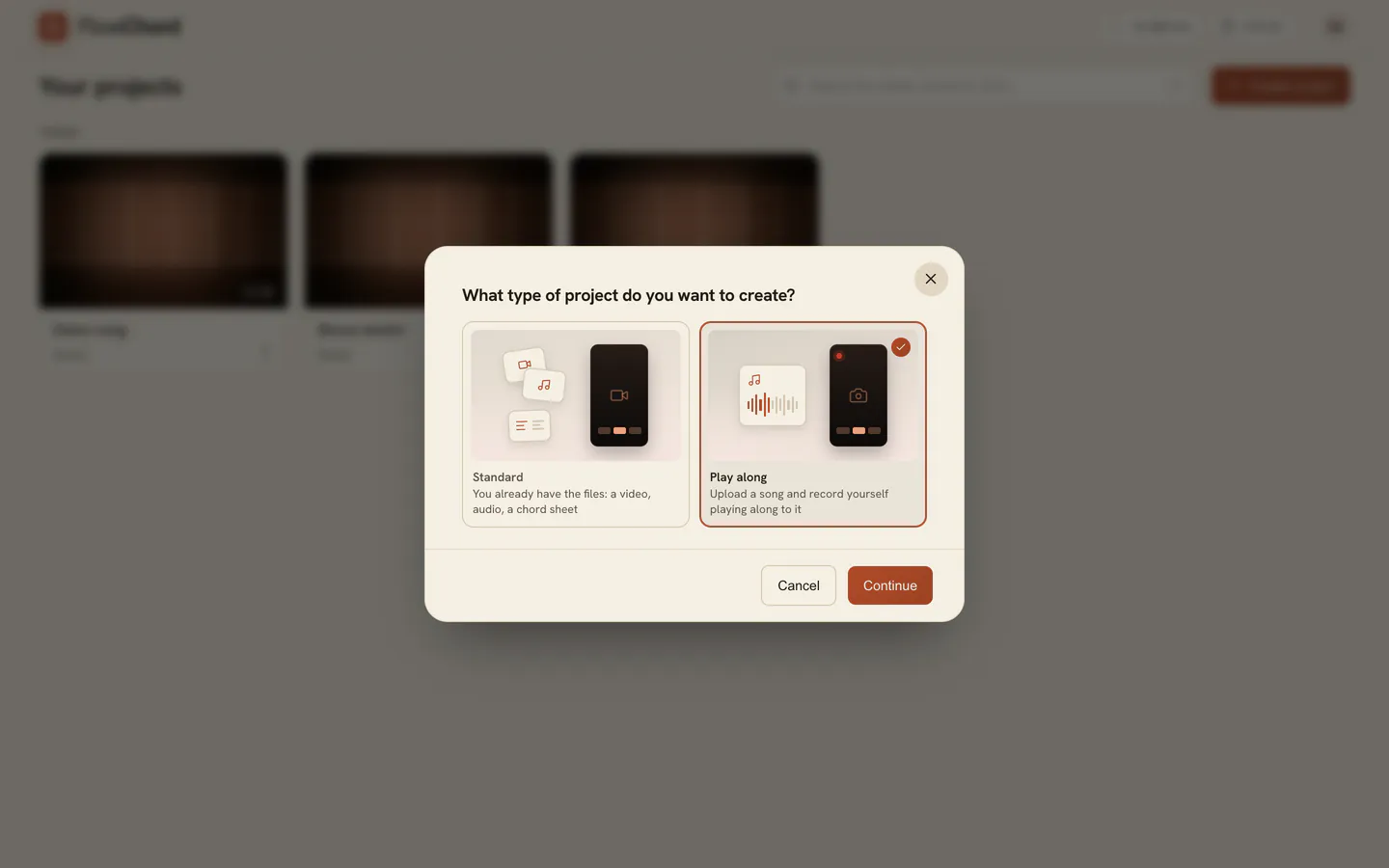
- Press Create project, pick Play along and press Continue.
- Type a name in Project name.
- Under The song to play along to, press Upload the song and choose the song.
- If the song is a video, choose under Use from this video: Video keeps its picture, Sound only keeps only its sound.
- Optional: add the song’s chord sheet under Chord sheet (optional).
- Press Continue to recording.
Get ready
- Press Allow access and let the browser use your camera and microphone. Without a camera, press Microphone only.
- Check the camera and microphone named along the bottom of the picture. Press one to pick another device.
- In Sound check, press Record 4 seconds and play the way you will in your take. It plays back by itself.
- If it sounds right, press Sounds good. If not, move the microphone and press Record another.
- In Headphones, press Play test sound and answer whether you heard it only in your headphones.
- Press Start recording, or Enter.
Record your takes
- Choose the Count-in and the Length of the take, under the pictures.
- Press Record, or R. After the count, the song plays and you play along.
- Press Stop, or Space, when you are done. The take shows up in the lanes under the song.
- To redo a part, move the position in the lanes to just before it, then press Record from here. The song starts a little earlier so you can come in, and the new take replaces what you played there.
- Press Listen back to hear the result with the song.
Finish
- Press Finish.
- Check What you recorded: the part of the song the editor will open on.
- For Chords and Lyrics, choose whether FlowChord hears them from your Recording or the Song.
- Read the cost line, then press Finish and process.
FlowChord builds your recording, saves it to the project and finds the chords (how analysis works). After this, there is no recording again in this project.
Options
| Setting | What it does |
|---|---|
| Count-in | How long the count lasts before the take starts. When there is song before that point, it plays during the count. |
| Length | Until I stop, or a fixed length after which the take stops by itself. |
| Picture and sound | Change the camera or the microphone and check again. It applies to your next takes; the ones you have stay as recorded. |
| Final version | The lane with what your takes add up to. Its level and the song’s set how you hear them back, not the final video’s mix. |
| Start over | Deletes every take from this computer. The song stays. |
How takes add up
- You can record any part of the song, from anywhere. You do not have to play from the top.
- Where takes overlap, the newest one is kept. Discarding a take brings back what it had replaced.
- Press play on a take’s own lane to hear it on its own, and use the trash icon beside it to discard it.
Chords and lyrics at Finish
At first, the chords are heard from your recording and the lyrics from the song. With your recording as the source, chords show only where you are heard playing, so the bars you sit out stay clear. With a chord sheet, the sheet names the chords and the chosen recording places them.
Tips
- Missed a note? Keep playing. Afterwards you can record just that part again.
- Your takes stay on this computer until you finish. Reloading the page finds them where they were.
- Stopping on a mistake is fine too: move back a little and record from there.
- What you hear in your headphones while recording is only for you. The final mix is set in the editor.
Common problems
Play along is greyed out in the dialog. The card says why: a phone or tablet, a page that is not secure (https), or a browser that cannot record. Use an up-to-date browser on a computer.
FlowChord can’t use your microphone. The browser refused it. Allow it in the site settings (the icon beside the address), then press Try again.
The song didn’t finish uploading. Press Choose the file and pick the same file. Your takes are still there.
The recording stopped by itself. A device was unplugged, the page went to the background, or the song ended. What you played up to then is kept.
The project says your recording is on another device. Takes live on the computer they were recorded on. Open the project there to finish or save it.
A take sounds out of step with the song. See devices and timing.
Was this article helpful?
Still stuck?
Write to us and a person on the FlowChord team will answer by email.
Contact us