How FlowChord finds the chords and lyrics
What happens after you create a project — what is heard, how a chord sheet is used, mistakes cut for you, and what is charged.
Updated October 22, 2026
Once you create a project, FlowChord prepares your files, listens to your recording and builds the chords and lyrics on the song’s timeline. A progress card shows each step, and the editor opens by itself when everything your cuts show is ready (what a cut shows). This article explains what happens on the way, so you know what to expect and what to fix afterwards.
Before you start
What FlowChord listens to is decided when you create the project: whether the chords come from AI or from your chord sheet, and, with several recordings, which one is heard for the chords and which for the lyrics (create a project). None of this can be changed afterwards.
Steps
The Preparing screen is one card in two halves. On the left, your video: its opening frame, dim while the work runs, with the song’s length in its corner. It fills in as each step reports — Your video · fully received once the file is stored, chips with how many chords and lyric lines were found, the song’s first chords as a chord line, with ghost capsules at its end while the line is still being built, and the song’s shape under them; with a guitar tab on the way, tab on its way, then tab ready. Nothing is shown before its step reports it. On the right, Preparing your chord video, a bar with how many of the steps are done, and the steps, each with one line of what it is doing while it runs, and an estimate in minutes only once the step has reported enough to give one:
- Optimizing your files: when a file is larger than the project can use, your browser makes it smaller first. The file you picked never leaves your device.
- Uploading video: the prepared files are stored. Meanwhile, your browser listens to them once, to line up files that were not started together and to find obvious mistakes in the take.
- Preparing audio: the sound of the recording the chords are heard from is taken out of it.
- Detecting chords and lyrics: the AI hears the chords and the beats, and writes down the words that are sung.
- Building chord timeline: the chords and lyrics are placed on the song, and the editor opens in place.
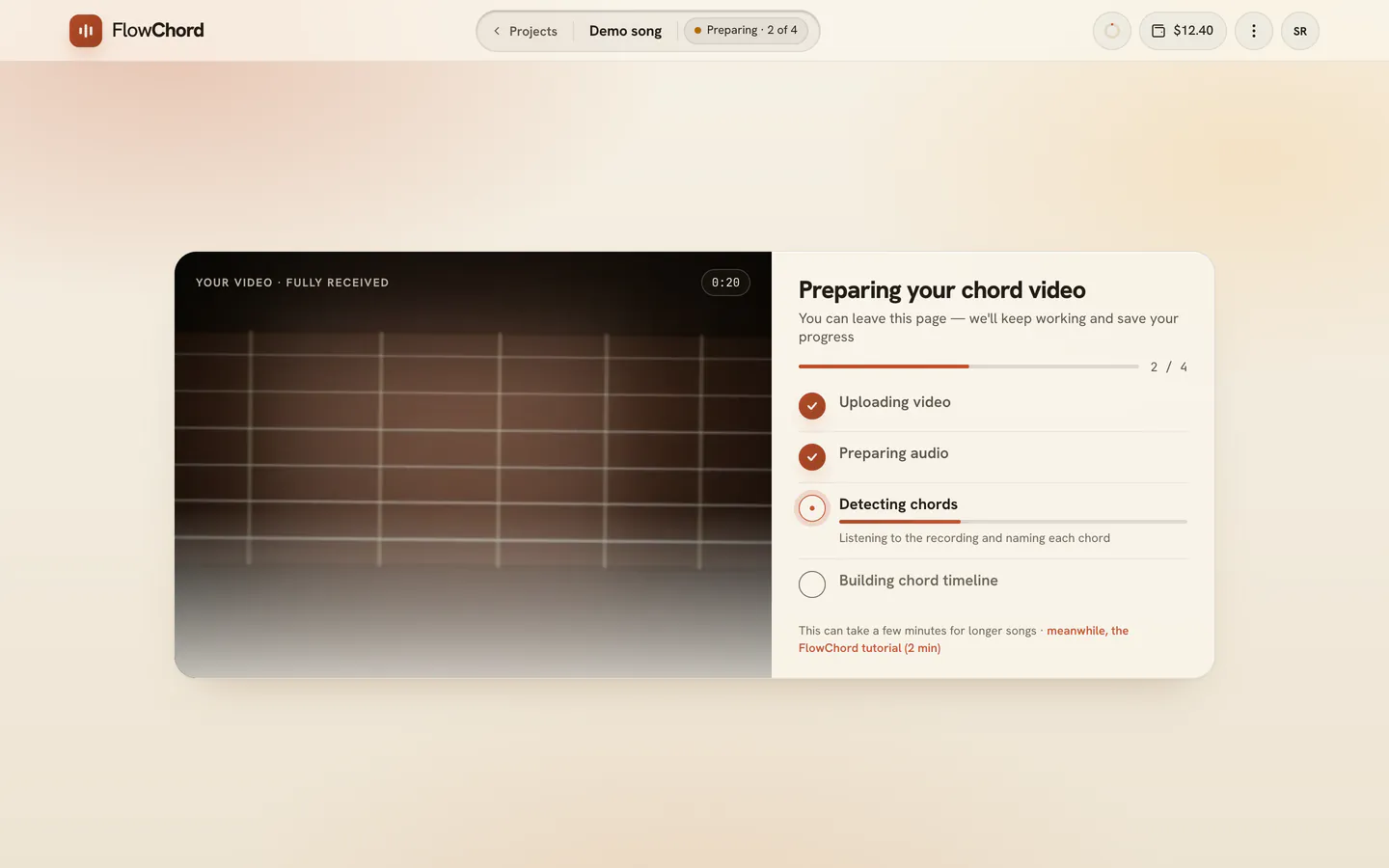
How many steps there are depends on the project. With a chord sheet, the middle rows are Uploading chord sheet and Reading chord sheet instead; a Play Along adds Saving your recording; a cut that shows the guitar tab adds Making the guitar tab, and one that shows the lyrics alone waits on Hearing the lyrics.
Once the lyrics are written down and FlowChord recognises the song, a bubble under the steps says which song it seems to be: the song card comes filled in when the editor opens, for you to correct there. At the foot, a link to the FlowChord tutorial for the meanwhile.
Options
What is heard
- The chords come from one recording: the one you chose, or else the audio file, or else the first video.
- The lyrics are written down from the same recording, or from the one you chose for them.
- The lyrics are a bonus: if they cannot be heard (an instrumental, a hummed tune), the project still gets its chords.
- In a recording where you talk for long stretches between the parts you play, such as a lesson, your browser first finds where the music is, and only those parts are listened to for the chords. The talk gets no chords, and the chords leave the video while you talk. What you are charged does not change.
- In a Play Along project, chords show only where you are heard playing (record a Play Along).
With your chord sheet
Your sheet and the recording each decide something different:
- The recording decides when. Each chord starts where you play it, and a line of lyrics shows only where it is sung. A lyric line the sheet prints but you did not sing is not shown, and a chorus you sang twice is shown twice.
- The sheet decides the names and the words. Where you play what the sheet prints, its chord names and the shapes it draws are used. Where the transcription and the sheet disagree on a word, the sheet wins, and what was heard stays one press away in the lyrics editor.
- A chord you played that the sheet does not print at that point stays as the AI heard it.
Mistakes cut for you
When you stop, pause and start a phrase again, FlowChord can cut the broken-off try out of the video. It cuts only when every sign agrees: the music stops short, what follows replays what came before, and the song plays that passage straight through elsewhere. A pause, a held note or a chorus repeated on purpose is never cut.
When the editor opens, a message says how many mistakes were cut. Each is a normal cut on the timeline: drag its edges to adjust it, or press its bin, Put back, to bring the passage back. It is also a step of the editor’s history, so you can undo it.
Chords played ahead of the beat
In styles like samba and bossa nova, the guitar often changes chord just before the beat. When the notes and the strum both say so, FlowChord moves that change earlier, to where you play it, never by more than a beat.
The song found, the lyrics checked
Once the lyrics are written down, FlowChord works out which song you are playing from the words you sing, and fills in the song’s details and cover where you left them empty (song card). It also checks the lyrics for obvious mistakes — a word clearly misheard, spelling, punctuation and capitals — without rewriting them: every line keeps the moment it is sung, repeats stay, and slang stays as you sang it. What was heard stays one press away in the lyrics editor. Nothing is changed in lyrics you have already edited.
On the Creator plan, once the words and the chords have landed, FlowChord also looks for the moments of your video — the version you say could be better, a technique you show, a call to action in your words — and lays its Smart Edits on the first cut. The editor waits for them and opens with them already on the video. See Smart Edits.
What it costs
| When | What is charged |
|---|---|
| Creating a Standard project | The whole length of the recording the chords come from, once. A song shorter than 60 seconds counts as 60 seconds. |
| Finishing a Play Along | The length of the recording the chords come from, when you press Finish. |
| Your free video | Nothing. The AI hears only the first 30 seconds, and a chord sheet is not read. |
| Unlocking a free video | The whole song, which is then heard again from start to end. |
| An analysis that fails | Nothing: its charge is given back by itself. |
See pricing for the rates.
Tips
- You can leave the page while the card works: a chip in the bar at the top says how many of the steps are done, and the project opens on the screen again. Keep the tab open until Preparing audio is ticked (with a chord sheet, until Reading chord sheet is): until then, your browser is doing the work.
- This can take a few minutes for longer songs.
- If you edit the lyrics before the transcription arrives, your lines are kept. What arrives later never overwrites your work.
Common problems
A step failed. Its row says why, and the ways on sit in the row. For a chord sheet that could not be read: Replace chord sheet, Generate with AI instead (the sheet is removed and FlowChord finds the chords itself, after asking you to confirm) or Delete. For a failed analysis, press Try again. A failed analysis gives its charge back by itself (analysis problems).
Reading the chord sheet stopped when the page closed. Open the project and press Resume on the card.
A chord is wrong. Fix it in the editor (fix a chord).
A lyric line is wrong or missing. Fix it, or write it in (fix lyrics).
FlowChord cut something you played on purpose. Press Put back on that cut in the timeline.
Was this article helpful?
Still stuck?
Write to us and a person on the FlowChord team will answer by email.
Contact us