Add the song's name, cover and a background
Show the song's name, artist and cover as an animated card, pick its style and timing, and set a background around your video.
Updated October 29, 2026
When you tell FlowChord what the song is — its name, who made it, the year, a cover picture — the video opens with an animated song card: the cover turns in, the name arrives letter by letter, and the artist and year slide in beside it. A background can also show around your footage: a blurred copy of the video, a painted wallpaper, or a photo of your own.
Both live in the Extra tab of the settings card, under Song and Background. They only dress the video: nothing here changes your chords or lyrics.
Before you start
- Open a project in the editor and pick the cut you want to dress in the cut switcher in the bar at the top.
- For a cover or a background photo, have a PNG, JPG or WEBP picture ready, up to 20 MB. A record sleeve works well, but any photo will do.
Steps
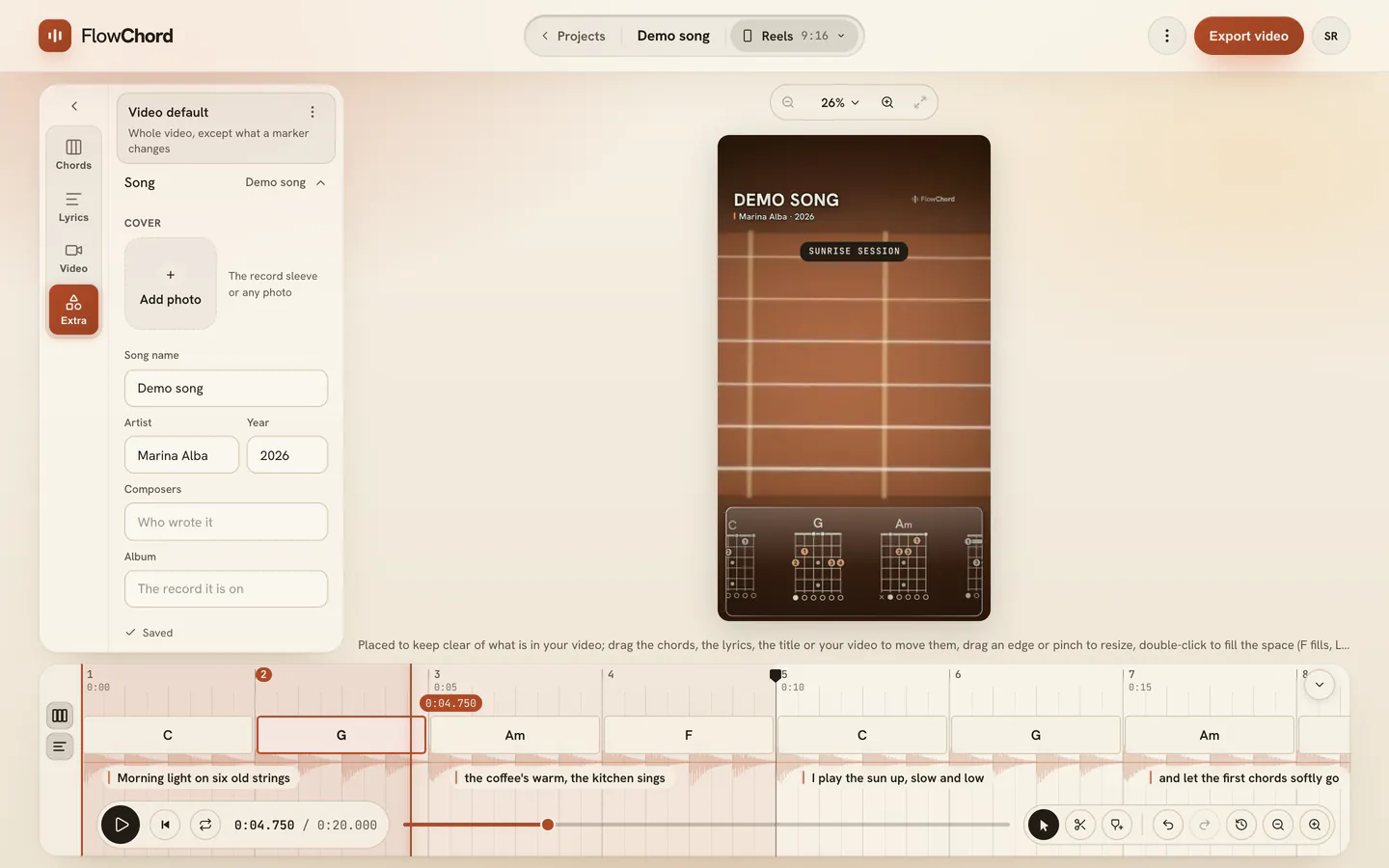
Add the song’s details
- Open the Extra tab and then Song.
- At the top, under Cover, press Add photo and choose a picture.
- Type the Song name, the Artist and, if you like, the Year, the Composers and the Album. The Artist is who sings or plays the recording you follow; the Composers are who wrote the song, which is often someone else.
The card appears as soon as there is at least a name, an artist, a year or a cover. To change the cover later, use Replace; to take it off, use Remove.
Let FlowChord fill them in
When your recording sings the words of a song FlowChord can find, it fills in the details for you once the lyrics are ready: the Song name, Artist, Album and Year, and the record’s cover when your project has none.
- Only empty fields are filled. A name, artist or cover you entered is never replaced.
- The Composers are never filled in for you, and never copied from the artist: type them yourself.
- A message under the details says which song was found. Check them, and change anything that is not right.
- FlowChord fills them in even when it is not completely sure of the song, so check them first.
- An instrumental, a hummed tune or a song FlowChord does not know leaves the fields for you to fill in.
- There is nothing to press. If the search could not finish, FlowChord tries again on its own, and the details appear the next time you open the project.
Say the song’s styles
- Under Music styles, press the styles the song is played in — Bossa nova, Samba, Rock and more. Type in Search styles to find one by its name.
- Pick up to 3. The first you pick is the main one; the line above the styles shows them in order.
- Press a style again to take it off.
The styles are not drawn on the video. They say what kind of music your video is, so it can be found by style.
When your chords are ready, FlowChord also listens for the styles on its own: it reads the song it found, its tempo and the kind of chords it uses, and fills in the styles if you have not chosen any. A message under the styles says they were detected, so check them. If you take every style off, FlowChord leaves them empty.
Choose how the card looks
- Open the Style row. Each tile shows your own song name and cover in that style.
- Pick Classic, Editorial, Poster, Handwritten or Now playing.
- Under Position, press one of the nine spots to send the card to a corner, a side or the centre.
- Under Size, drag the Cover and Text sliders to size the picture and the words apart.
You can also drag the card on the preview to move it, or drag its edge or corner to resize it. Dragging a corner grows the cover and the words together.
Choose when it shows
- Under Song animation, drag Comes in at to set how long after the video starts the card comes in.
- Drag Stays for to set how long it stays on screen, its way in and out included.
Set a background
- In the Extra tab, open Background.
- Pick a tile: None, Blurred video, Copacabana, Sunset, Vinyl or Your photo.
- For your own photo, press Your photo and choose a picture. Use Replace or Remove under the tiles to change it later.
Options
| Background | What you get |
|---|---|
| None | Plain dark wherever the video does not reach |
| Blurred video | Your own video, blurred and dimmed, fills the frame around the picture |
| Copacabana | The waves of Rio’s famous promenade, in FlowChord’s colours |
| Sunset | A sky going from night to gold over the sea |
| Vinyl | The grooves of a record around its label |
| Your photo | A photo you upload, cropped to fill the frame |
With a painted wallpaper or your photo, your video sits on a card inside the frame with a margin around it, so the background shows. The chords and lyrics float over both.
Tips
- The song’s name, artist, year and cover are the project’s: every cut shows the same ones. The card’s style, place, size and timing, and the background, are each cut’s own, so your vertical and horizontal cuts can look different. See Cuts.
- Comes in at counts from the first moment the cut plays, not from the start of the recording. If you trim the start or cut a part out, the card still arrives when you set it.
- The Album and the Composers are kept with the song’s details; the card shows the name, artist, year and cover. Your chord sheet and its page on your site show them.
- While the preview is paused, the card is shown fully arrived so you can read what you typed.
- For other things on top of the video — your own text, a logo, an Instagram card — see Text, images and the watermark.
Common problems
The song card doesn’t show. Check that the Song section has at least a name, an artist, a year or a cover, and that the playhead is within the time set by Comes in at and Stays for. You can only drag the card on the preview while it is on screen.
The cover says it couldn’t load. Press Try again. If it still fails, replace the picture or remove it. The video is drawn without the cover in the meantime.
My picture was refused. Use a PNG, JPG or WEBP file of 20 MB or less.
I changed the background and the other cut didn’t change. Each cut has its own background. Switch to the other cut and pick it there.
The export button waits. While a cover or background photo is uploading or loading, the export waits for it so your file shows the right picture.
Was this article helpful?
Still stuck?
Write to us and a person on the FlowChord team will answer by email.
Contact us