Make several videos from one project with cuts
Make a vertical Reel, a square post and a full YouTube video from the same project, each with its own length and look.
Updated October 28, 2026
A cut is one video made from your project. One project can hold up to 6 cuts: for example a 30-second vertical Reel of the chorus, a square post, and the whole song in widescreen for YouTube. Fixing a chord or a lyric line fixes it in every cut at once, because they all share the same song.
Before you start
You choose your first cuts when you create the project, in the step that asks which videos you want (see Create a project). You can add, change and remove cuts at any time in the editor.
What each cut keeps, and what they share
| Each cut has its own | Shared by every cut in the project |
|---|---|
| Name and shape: Vertical · 9:16, Square · 1:1 or Horizontal · 16:9 | Your files, their volume and how they line up |
| The part of the song it plays (its window) | The chords, the lyrics and their timing |
| The chord style and colour, and where the chords and lyrics sit | The chord notation, the capo and the tuning |
| The lyric style, colour and size | The song’s name, artist, year and cover |
| How the video is framed, its frame and filter, the background | |
| The song card’s style and timing, and the elements | |
| Its own export |
In short: what the viewer sees is the cut’s; what the song is belongs to the project.
Steps
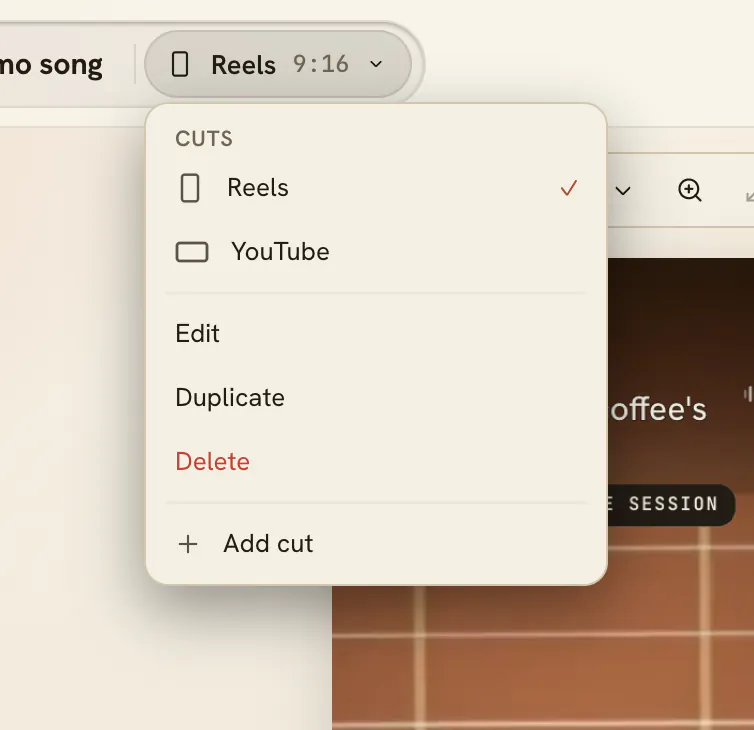
Switch between cuts
- Press the cut switcher in the bar at the top (under the project’s name on a narrow window or a phone). It shows the name and shape of the cut on screen.
- Pick another cut from the list. The preview, the settings card and the timeline now show that cut.
Add a cut
- Open the cut switcher and press Add cut.
- Type a Name, or leave it empty: the cut is named after what it suits (Reels, Stories, YouTube…) when its shape and length match one, or else after its shape. The name it will get shows in the empty box.
- Under Shape, pick vertical, horizontal or square.
- Under Length, pick Whole song, 1 min, 30 s, 15 s or Custom.
- For a short cut, FlowChord suggests the best window of the song, often the chorus. Press Play window to hear it, and drag the window or its edges to choose another part.
- Under Start from, choose A fresh layout or a copy of another cut’s layout.
- Press Add cut.
Change, copy or delete a cut
- Switch to the cut and open the cut switcher.
- Press Edit to rename it, change its shape, its length or its window, then press Save.
- Press Duplicate to make a copy of it, look and all.
- Press Delete and confirm to remove it. The project’s files, chords and lyrics stay, and so do the other cuts.
You can also move a cut’s window right on the timeline, by dragging the handles at the start and end of the range. Or right-click the timeline where the cut should begin or stop and choose Start here or End here: the cut starts or ends at that moment, without dragging all the way there. A choice is greyed out when the cut can’t start or end at that point, for example past its other end.
Options
| Length | When to use it |
|---|---|
| Whole song | The full song, for YouTube or a website |
| 1 min | Reels, Shorts and TikTok |
| 30 s | A quick clip of the best part |
| 15 s | Stories |
| Custom | Any length you type, in seconds |
Only the lengths your song is long enough for are offered.
Tips
- You pay once for the whole song, however many cuts you make and however long they are. See How pricing works.
- The suggested window says how sure FlowChord is: the chorus, likely the best part, or a good place to start. Restore suggestion puts the suggestion back after you’ve moved it.
- If a window was placed by FlowChord when you created the project, it is fitted once to the song’s bars when the analysis finishes. A window you moved yourself is never moved.
- Switching cuts is not a step you can undo, and the undo history starts over when you switch: finish undoing in one cut before you move to another.
- Whether the chords and lyrics show at all is also the cut’s choice: use the In this cut switch in the Chords and Lyrics tabs. A cut starts with what you chose for it under Shows when you created the project.
- Want a different look for part of a cut, like hiding the chords during a solo? Use markers.
- When you export, you pick which cuts to make; each one becomes its own MP4 file. See Export your video.
Common problems
I can’t add another cut. A project holds up to 6 cuts. Delete one you don’t need, or make a new project.
Delete is greyed out. A project always keeps at least one cut.
My change showed up in only one cut. Looks (styles, colours, placement, framing, elements) belong to each cut. Switch to the other cut and make the change there, or start a new cut from a copy of this one’s layout.
I fixed a chord and all my cuts changed. That’s expected: chords and lyrics are the project’s, so every cut stays right.
My free video’s cut is shorter than I chose. A free video covers only its first 30 seconds in every cut. Unlocking it opens the whole song.
Was this article helpful?
Still stuck?
Write to us and a person on the FlowChord team will answer by email.
Contact us