Download a chord sheet (PDF)
Turn a project into a printable chord sheet with the lyrics, the chords over the words, the chord shapes and the tab.
Updated November 1, 2026
Any project can become a chord sheet: a PDF with the lyrics, each chord written over the word it is played on, the shapes of the chords you use and the song’s details. It is made from the project as it is now, with every chord and line you fixed, right in your browser. Nothing is uploaded.
Before you start
- Fix the chords and the lyrics first. The sheet prints them as the editor shows them, in the project’s chord notation and under its capo. See Fix a chord and Chord names: cifra or international.
- Set the capo and tuning if you play with them, so the sheet names the shapes your hand makes. See Capo and tuning.
Steps
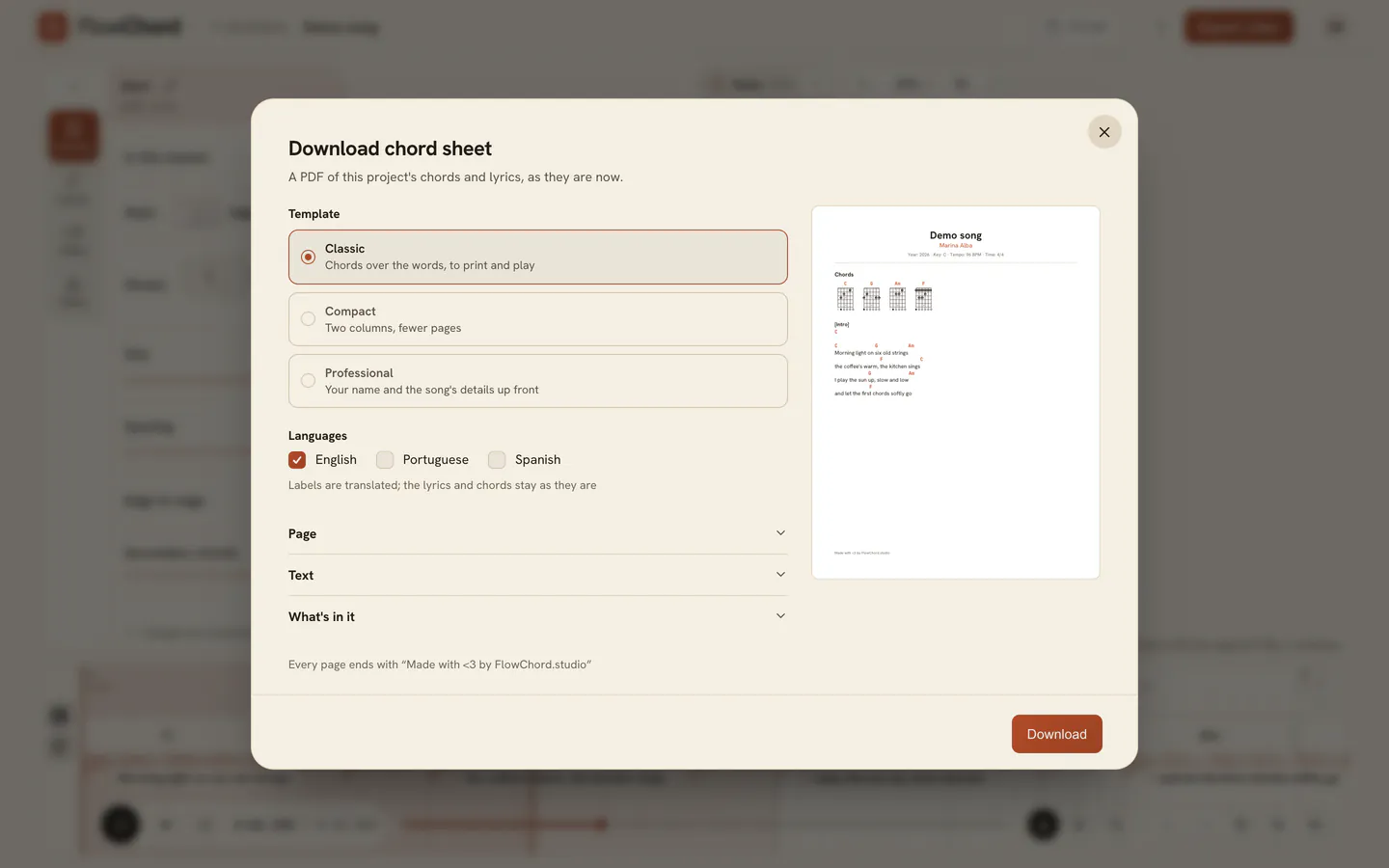
- Press Export video at the top of the editor, then Make PDF under the cuts. You can also open it from the project’s menu: Chord sheet (PDF).
- Pick a template. The preview beside it shows the first page as it will download; click it to see the sheet full screen, every page one under another.
- Tick the languages you want. The labels on the page are printed in each one; the lyrics, the names and the chords stay as you wrote them.
- Press Download. One language downloads a PDF; several download one ZIP with a PDF each.
Options
| Template | What it is for |
|---|---|
| Classic | Chords over the words, to print and play |
| Compact | Two columns, fewer pages |
| Professional | Your name and the song's details up front |
Open Page to pick the paper (A4 or Letter), the orientation and one or two columns, and the spacing. Open Look to dress it: the Colour of the chord names, the shapes’ fingers and the rules, the Font of the words (Sans, Serif or Typewriter; the chords are always in the mono face) and the Text size. A colour too light to read on white paper prints a shade darker. FlowChord breaks the pages for you: a chord never leaves its words, and a row of chord shapes or a line of tab is never split between two pages.
What goes on the page
Open What's in it to leave out any part: the cover, the song’s details, the lyrics and chords, the tab, the chord shapes, your name and the page numbers. Only what the project has is offered. A song’s detail FlowChord doesn’t know, like the composers, is never made up: it just isn’t printed.
Your brand signs the foot of every page: its logo (or your initials, when there is none), its name and its Instagram, YouTube and TikTok channels, from Brand. Without a brand, your profile’s name and the accounts you put on your videos’ cards are used instead. Everything you have is printed; untick what you’d rather leave out under About you. Your private contact never is.
Every page ends with FlowChord’s mark and a small “Made with ♥ by FlowChord.studio” line. On the Criador plan you can turn off FlowChord credit; your own name stays on the page.
Presets
Save the way you like your sheets with Save preset: the template, the languages, the page, the look and what goes on the page, under a name. Your presets are your account’s, so they are there for every song and on every device: pick one under Presets and the dialog takes its choices. Change something after picking one and Update preset gives it the new choices. The bin beside a preset deletes it; sheets you already made never change. You can keep up to 30 presets.
Tips
- The tab is printed when the project has one, a line of six strings at a time, with the frets as your hand plays them.
- A section is named only when the project knows it, like a chorus read from a chord sheet you uploaded. Otherwise the stanzas are just spaced apart, and the stretches with no singing are written as bars of chords.
- The dialog remembers your choices for each project, so the next sheet starts from them.
- On a phone, press Save beside each file to send it to your share sheet.
Common problems
The download button is greyed out. Tick at least one language. If the dialog says there is nothing to print, the project has no chords or lyrics yet.
A chord shape is missing from the map. The map draws the shapes the video draws. A chord with no known shape for your tuning is printed by name only.
The sheet shows the shapes, not the chords that sound. That’s the capo: the sheet names what your hand plays, as the video does. Set the capo to none to print the sounding chords.
Was this article helpful?
Still stuck?
Write to us and a person on the FlowChord team will answer by email.
Contact us