Export your video
Save your cuts as MP4 files to post anywhere — picking cuts, the sizes, phones, and what a free video can export.
Updated October 22, 2026
When your video looks right, export it. FlowChord makes the file right in your browser, from your footage, chords, lyrics and everything you put on the video, exactly as the preview shows it. Each cut becomes its own MP4 file, ready to post on Instagram, TikTok, YouTube or anywhere else.
Before you start
- Use a browser that can make videos: an up-to-date browser on a computer works best, and the device check tells you if yours can. See Browsers and devices.
- Check each cut you want to export: its window of the song, its look and its elements. See Cuts.
- Wait for any cover, background photo or image you just added to finish uploading. The export waits for them so your file shows the right picture.
Steps
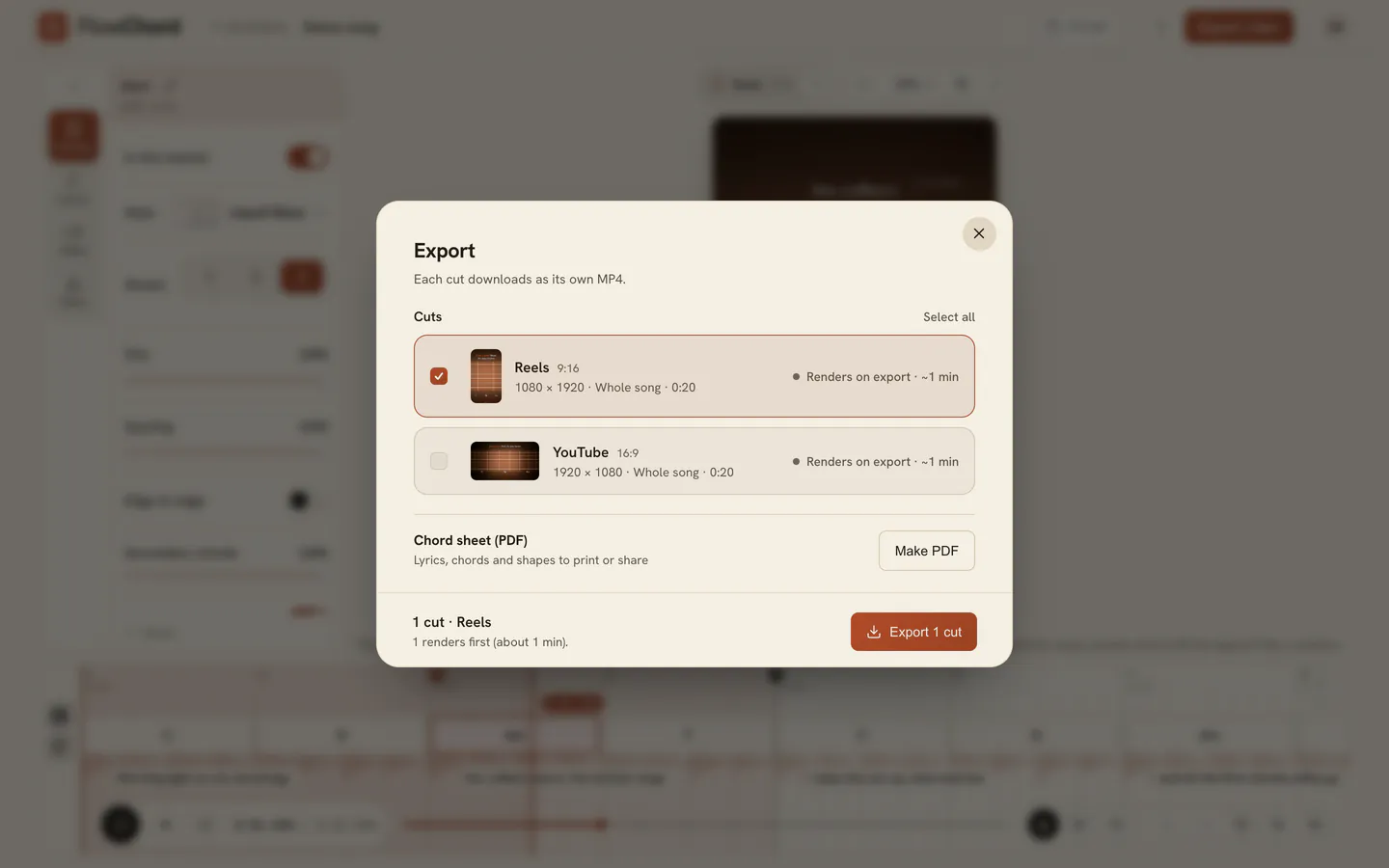
- Press Export video at the top of the editor.
- Tick the cuts you want. The cut on screen is ticked for you; press Select all to take them all.
- Read the right side of each card. Ready means the file was already prepared while you edited; otherwise it shows roughly how many minutes it will take.
- Press the export button at the bottom. It counts the cuts you picked.
- Keep the FlowChord tab open while the bar fills. Each file downloads as soon as it is made.
You can close the dialog while it works: the export keeps going, and the Export video button shows how far along it is. Open the dialog again to see the progress, or press Cancel to stop.
Options
| Cut shape | File size in pixels |
|---|---|
| Vertical · 9:16 | 1,080 × 1,920 |
| Square · 1:1 | 1,080 × 1,080 |
| Horizontal · 16:9 | 1,920 × 1,080 |
Every file is an MP4 with the song’s sound as you mixed it. It plays only the cut’s window of the song, with any parts you cut out removed. Its first frame, which most apps use as the thumbnail, is never a black screen: a video that fades in from black opens on its first lit picture.
A free video
Your account’s free video exports its first 30 seconds, at a smaller size: 480 × 854 for a vertical cut, 854 × 480 for a horizontal one. Each card says so. To export the whole song in full size, use the Unlock button in the dialog, which shows the price. See How pricing works.
Tips
- To print the chords and the lyrics, download the chord sheet from the same dialog: Make PDF.
- FlowChord can prepare the file of the cut on screen in the background when you pause between edits, on a computer with enough power (never for a free video). It waits while the preview plays, and waits longer while you keep editing, so the editor stays quick. When you open the dialog that cut is already Ready, and its file downloads at once.
- Exporting again is free: you paid for the song, not for each file. Each card shows when that cut was last exported.
- Files are named after the project and the cut, so several cuts are easy to tell apart in your downloads folder.
- Your browser may ask whether FlowChord can download several files. Allow it to receive all the cuts you picked.
On a phone
On a phone, the export opens as a sheet from the bottom of the screen. When your videos are ready, press Save video on each one: your phone’s share sheet opens, where you can save it to your photos or send it straight to an app. Where the share sheet can’t take a video, the button reads Download video instead. Press Done when you’re finished. See Use FlowChord on your phone.
Common problems
The export button is greyed out. Tick at least one cut. If a cover, background or image is still uploading, wait for it to finish.
The export stopped when I left the page. The video is made in your browser tab, so leaving the project or closing the tab stops it. Stay on the project page until your files have downloaded; you can use another tab meanwhile, though the export may run slower while its tab is hidden.
My browser says it can’t export. Video export needs an up-to-date browser that can encode video. Update it, or try another browser on a computer.
The file has no sound, or shows a plain backdrop instead of my video. Your browser couldn’t read part of your footage. Try another browser. More fixes in Export problems.
My video is only 30 seconds long. It’s your free video. Unlock it to export the whole song.
Was this article helpful?
Still stuck?
Write to us and a person on the FlowChord team will answer by email.
Contact us