Use FlowChord on your phone
Make, fix and save a chord video from your phone's browser, with an editor made for touch. No app to install.
Updated October 28, 2026
FlowChord works in your phone’s browser. There is no app to install: open FlowChord on a phone or a tablet and you get a version made for touch, with one thing to do on each screen. Your projects are the same ones you see on a computer, so you can start on one and finish on the other. The same editor also opens on a computer whose browser window is too narrow for the settings card and the timeline.
Before you start
- On an iPhone or iPad, update to iOS 26 or later and use the browser that came with it. On Android, keep your browser up to date.
- If you opened FlowChord from a link inside Instagram, TikTok or another app, open it in your phone’s own browser. FlowChord offers a button for that; an app’s own browser can’t sign you in with Google or save the video to your phone. You can also tap Copy link and paste the link into your browser.
- Have the video you want to use in your gallery, or record it when you are asked to pick one.
Steps
Move between pages
The bar floating at the bottom of the screen holds the same pages as the bar at the top on a computer, among them Home, Projects and Brand.
- Tap a page in the bar at the bottom. The page you are on is lit.
- Projects shows how many projects you have.
- To go home from anywhere, tap Home, or the FlowChord mark at the top. Your balance (or your plan’s minutes) and your account menu sit beside the mark.
The bar steps aside in the editor, while a sheet is open and while you type, and comes back when you’re done.
Make a video
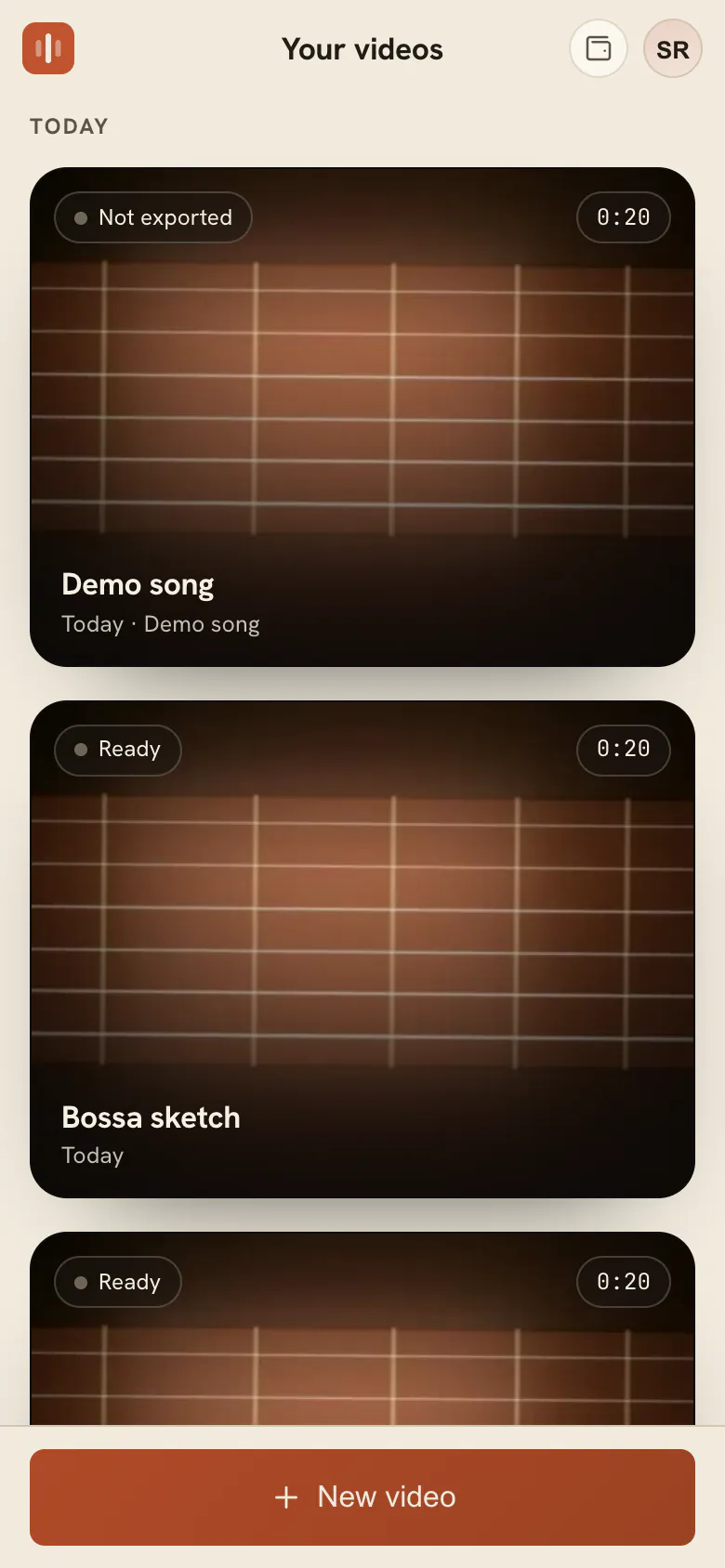
- Tap Projects in the bar at the bottom, then Create project at the top right, beside the page’s name.
- Pick a video from your gallery, or record one with the camera.
- Check the name under Project name: FlowChord fills it in from the file name. Type another if you like.
- Under How much of the song, choose the whole song or a shorter part. For a shorter part, FlowChord picks where it starts. With presets, Start from above it says which one the video starts from, and lets you pick another (presets).
- Check the price line under it. If your balance is short, add funds when you are asked.
- Tap Make my video.
- Keep the page open while FlowChord prepares your video and finds the chords. The screen stays on by itself. When it is done, the editor opens.
Fix and style it
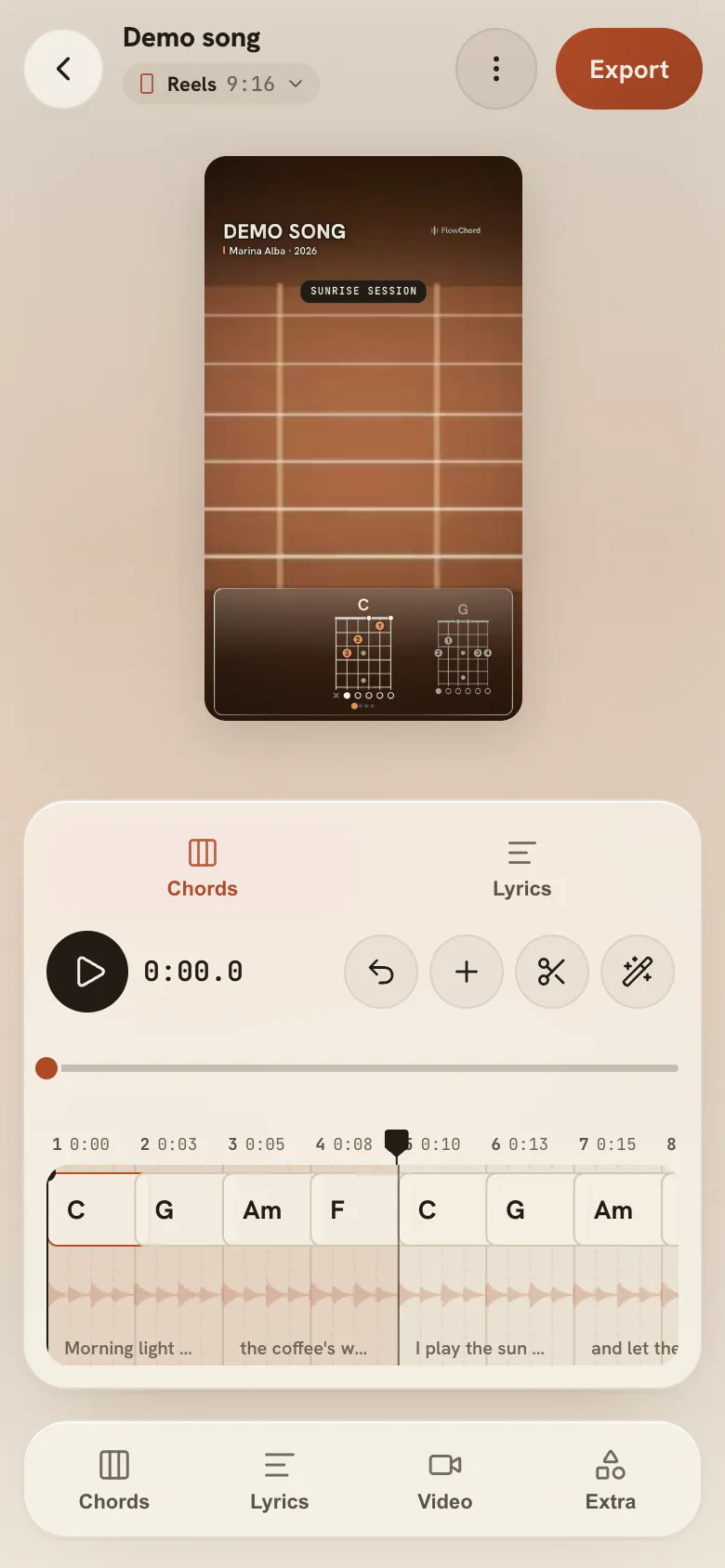
- Tap play in the pill at the foot of the timeline panel. The song runs up the sheet: the line across it is where you are, and the ruler at its left says the bar and the time.
- At the top of the panel, choose what the sheet shows: Chords, Lyrics or Tab. One layer at a time. Tab is there only when the cut shows a tab.
- Tap a chord, a lyric line or a note to pick it. The song pauses there; a tap never changes anything.
- Hold your finger on what you picked to open its menu: everything you can do to it, as a right click opens it on a computer — change the chord or its fingering, edit the words, split, play it, copy, hide or delete.
- To change how the video looks, tap a tool along the bottom. Chords, Tabs and Lyrics open their settings in a sheet, the same ones a computer has, and put that layer on the sheet. Video and Extra open theirs.
- Drag the sheet’s top up to give it the whole screen, or down to make it smaller again. To close it, tap Close the panel, flick the sheet’s top down, or pull its settings down while they are scrolled to the top.
Save the video to your phone
- Tap Export at the top right.
- Choose the cuts you want and start the export. Each cut is saved to your phone as its own video.
- Keep the page open until the video is ready.
- Tap Save video. In your phone’s share sheet, choose Save Video to put it in Photos, or pick Instagram, TikTok or another app to post it straight away. Where the share sheet can’t take a video, tap Download video instead.
- Tap Done.
Options
The editor has four parts:
| Part | What it does |
|---|---|
| The top bar | All projects, the project’s name over the cut you are looking at (tap it to switch cuts, or to add, edit, duplicate or delete one), the project’s menu and Export. |
| The stage | Plays the cut as it will export, small in the sheet’s margin. Maximize it with its corner button, then tap the chords or the lyrics on the video to pick them, drag to move them or pinch to resize. |
| The timeline panel | At its top, Chords, Lyrics and Tab (the layer on the sheet), with Undo and Redo. Then the sheet: time runs down it, the bar ruler at its left, the layer over the song’s sound and its beat lines, the playhead as a line across it. The video floats in the sheet’s margin. Under the sheet, the whole song to scrub through, and the pill. |
| The tools | Chords, Tabs, Lyrics, Video and Extra: each opens its settings in a sheet. A tool shows only when the project has something for it. |
The pill
| Button | What it does |
|---|---|
| Play | Plays or pauses the song. |
| Loop | Plays the cut round and round. |
| Select | A tap picks; a drag scrolls the sheet. |
| Cut | Drag down the sheet over a part of the video to cut it out. |
| Add marker | Adds a marker where the playhead is (markers). |
| Zoom out · Zoom in | Makes the beats shorter or taller on the sheet. A pinch does the same. |
- The video’s corner button makes it as big as the screen allows, to watch the cut. Its corner button there brings it back to the margin. Drag the small video to park it at the top or the bottom of the sheet.
- Sideways, the sheet runs across like a computer’s timeline: the ruler on top, the song moving from right to left under the playhead line, and a tab’s strings as rows with the high e on top. The video stands beside the sheet at the screen’s height, and the pill runs down the right edge.
Tips
- On the sheet, drag up or down to move through the song, flick to go further, and pinch to zoom.
- A picked chord or line shows two grips at its start, one on its top edge and one on its bottom edge. Drag one to change where it starts or ends: it lands on the nearest beat line. Drag the picked chord onto another to put it there instead; drag a picked line to move the whole line.
- When the chord you fix comes back in the song, the chord’s sheet has a switch to also fix its repeats, with how many there are. Leave it on and the fix goes to those places too; turn it off to fix only this one (when the passage comes back).
- While you type a line’s words, Split here, Join next, As sung, Previous and Next sit on top of the keyboard.
- Turn the phone sideways and the tools run down the left edge, the sheet in the middle with the song running across it, the video beside it and the pill down the right edge. There, drag left or right to move through the song.
- Every change saves as you make it. You can leave and come back from Projects any time, except while a video is being made or exported.
- Hold a finger on a project on Projects to export, rename or delete it.
- Some things need a computer: Play along recordings, projects with several files or a chord sheet, and picking several chords at once. Open the same project on a computer to use them.
Common problems
On my computer the editor looks like the phone’s. Your browser window is too narrow for the settings card and the timeline. Make it wider, or maximise it: the editor changes as you resize, and nothing you were doing is lost.
This phone can't make videos yet. The browser can’t prepare or export video. On an iPhone, update to iOS 26 or later and use the browser that came with it. On Android, update your browser from the Play Store. You can check what your phone can do at app.flowchord.studio/device-check.
There is no Google button, or the video won’t save. You are in another app’s browser. Open FlowChord in your phone’s own browser.
The page reloaded and asks for the video again. FlowChord was updated while the page was open, and the picked video was lost. Pick it again; nothing was charged for a video that wasn’t made.
I undid one step too many. Tap Redo, beside Undo at the top of the timeline panel.
The export stopped. Keep FlowChord open and on screen until the video is ready. See Export problems.
Was this article helpful?
Still stuck?
Write to us and a person on the FlowChord team will answer by email.
Contact us