Your home
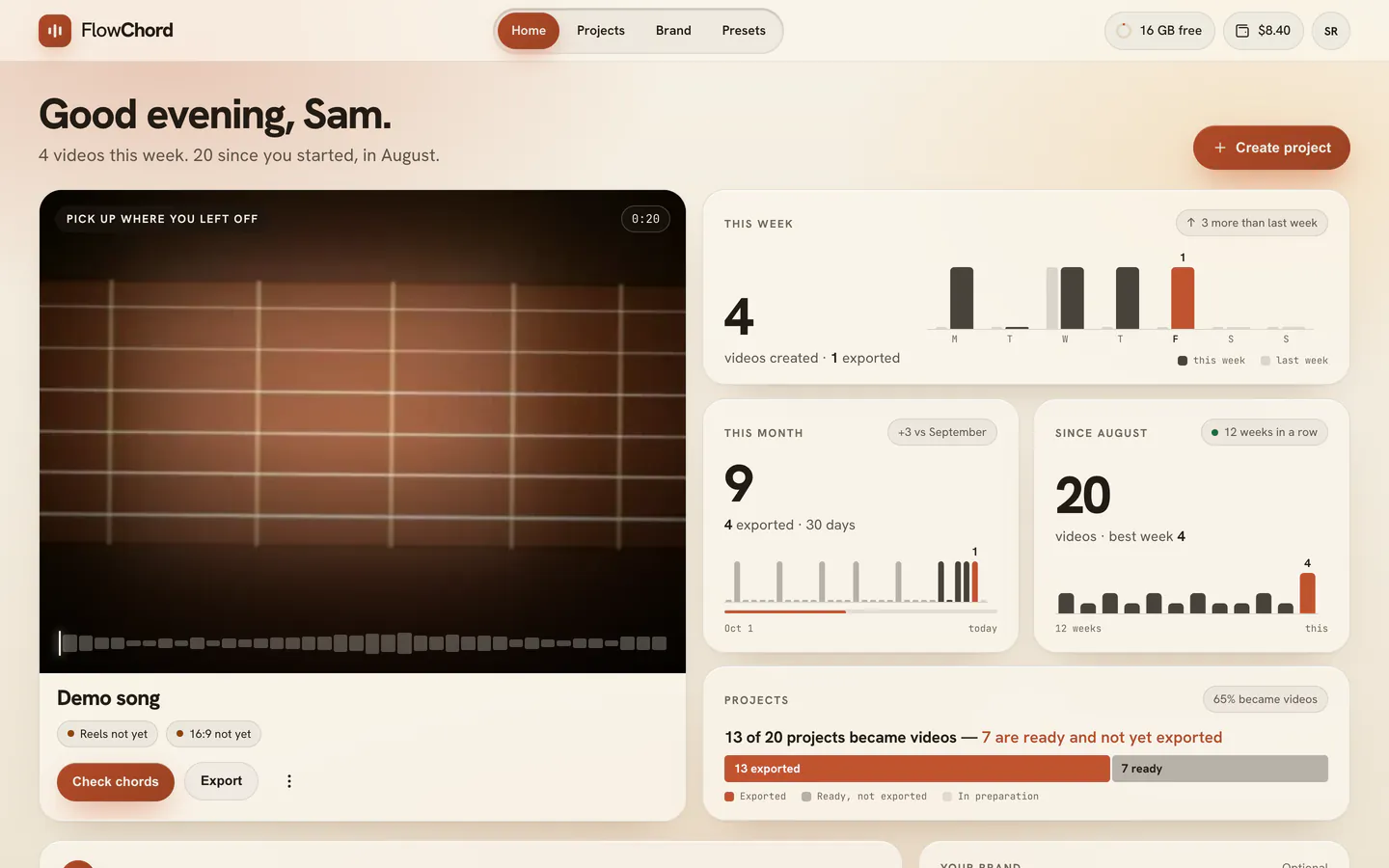
What the home shows after you sign in — your latest project as a stage, your numbers, FlowChord Intelligence, your brand and your projects.
Updated October 31, 2026
The home is the first page you see after signing in: a greeting, the project you worked on last shown as a stage with its next step, how much you made this week and this month, FlowChord Intelligence with a shortcut or two read from your projects, your brand, your earnings if you are a creator, and your projects under all of it. Each part has its own heading, with the way to its full page at the end of the heading’s row. Nothing on it is invented: every number, chip and suggestion is read from your own projects, and a part with nothing to say is simply not there.
Before you start
- Sign in. The home is yours: another account sees its own projects and numbers.
- To come back to it from any page, press Home in the bar at the top, or the FlowChord mark. Projects, Brand and Presets beside it open the other pages: your projects, your brand and your presets. Projects shows how many projects you have. On a narrower window the bar shows the pages as icons, and the one you are on keeps its name; on a small window the bar has no pages, and they are in your account menu instead. On a phone the pages are in a bar floating at the bottom of the screen (FlowChord on your phone).
Options
The greeting
The heading greets you by your first name with the time of day, and the line under it says a fact or two: how many videos you made this week (or this month), the last project’s cut still to make, or how many since you started. With no fact to say, the heading stands alone. Create project beside it is where every new project starts (Create a project).
Tabs
When your home has more than one part of your work to show, tabs under the greeting keep them apart, so the page is never one long scroll. Projects holds your own work: the stage, your numbers, FlowChord Intelligence and your projects, with your brand until it has a tab of its own. Brand is there once you have a site, even a draft, or are in the creator program, and holds your brand, your site and your earnings together; Practice is there once you have practiced a video from another creator (practicing). With only one of these, there are no tabs and the home shows everything on one page. The tab you pick stays in the address, so reloading the page or coming back to it opens the same tab.
The stage
The stage is the project you worked on last, at full size: its picture, how long the song is, and under its name one filled button for what comes next.
| The project | Button | What it does |
|---|---|---|
| Ready, opened before | Continue | Opens the editor where you left off. |
| Ready, never opened | Check chords | Opens the editor so you can listen and check the chords. |
| Still being made | Follow along | Opens the project’s page with its progress. The stage shows the progress too, and the project opens by itself when it is ready. |
| Failed | Try again | Opens the project to run the analysis again; Change file beside it, to pick another file. Nothing was charged. |
| Its video archived or removed | Re-upload video | Opens the project to upload the same video again; Chord sheet PDF beside it, since the chords and lyrics are kept. |
Beside Continue or Check chords, Export opens the export dialog without opening the editor; it reads Export 16:9 when the vertical cut went out and the horizontal one did not. Over the picture sit the chords around the moment you stopped at and the song’s shape with the playhead where you left it — the chords only once the editor has read them in this browser. Chips under the name say which cuts were exported and when, which are not yet, and the preset the project started from. The ⋮ menu is the project’s own: Export, Rename and Delete.
Your numbers
Once you have 3 projects, or your account is 14 days old, your production stands beside the stage in one card, its figures side by side. This week counts the videos created, how many were exported, and how this week compares with the last. This month does the same for the month, with the change against last month — or first month in your account’s first month. The third figure counts every video since your first project’s month (or All time after a year), with your best week and how many weeks in a row you have made one. Under them, one sentence says how many of your projects became videos, and its link filters your projects to the ready ones never exported.
Under the card, Recent shows the projects you worked on after the one on the stage: two rows, three across when the window is wide enough and two when it is not. Press one to open it; right-click it for its actions. Your projects further down go on from the last one shown, so no project appears twice.
After 8 weeks without a new project the week and month figures step aside: the card says how many videos you have made in all and how many weeks ago your last one was — never a row of zeros for a figure.
With one project, Next steps stands in the numbers’ place: check the chords and lyrics, choose the look, export — the step you are at lit — and the tutorial on editing chords.
FlowChord Intelligence
FlowChord Intelligence speaks in bubbles: 2 at most on a computer, 1 on a phone. It only reads your projects — their cuts, exports, presets and your brand — and nothing changes without you: each bubble has one action and Not now, which puts that suggestion away for 30 days (it comes back only if it is still true). When no rule applies, the section is not shown.
| It says | When | The action |
|---|---|---|
| Your last videos use the same look | Your last 5 projects share chord style, lyric placement and shape, and no preset has that look | Save as preset: the preset is saved from your latest project (presets) |
| You haven’t made a chord sheet PDF yet | 3 or more projects with lyrics, and no PDF ever downloaded | Make chord sheet: opens the project, where the sheet is made (chord sheet) |
| Edited videos never left here | 2 or more projects ready, not exported and untouched for 3 days | Export all: the export dialog, one project after the other |
| Your exports were vertical only | Your last 8 exports all 9:16, and no 16:9 cut in any project | Add 16:9: opens the project, where the cut is added (cuts) |
| Your exports went out without a logo | 3 or more exports, no brand logo, and the brand card’s own prompt put aside | Add logo: opens your brand |
| This seems to be a known song | Your first project, when its lyrics point to a song FlowChord is not sure of | Use these fills the song card as the project opens; Not this one leaves it as it is (song card) |
| What’s new | You are back after 8 weeks or more, and features arrived since your last visit | Links to their articles; Got it closes it |
| A project’s video was archived | You are back, and a project’s video was archived or removed | See archived: your projects, filtered to them |
A new account hears an introduction once, with links to the first tutorials; See the tutorials opens the Help Center.
Your brand
Your brand shows what your videos carry. With a name, a logo and a channel it is your identity card: the logo, the name, each channel’s count as its platform reads it, and your logo watermark previewed on your latest project’s picture, with Watermark on every export when it is on. Until then it asks for the one most useful missing step — Set up brand, Add logo or Connect channel — and Later folds the prompt for 30 days. Edit opens your brand.
Earnings
If you are in the creator program, Earnings shows how it is going, beside the deal you have in words. Coming to you is what you earned and FlowChord has not paid yet — what is held, what is approved and what is on its way — with when the next payout goes, or why it can’t yet, and what was paid so far; with money in two currencies, each has its own card. Payout account says where your payouts go through Wise, or Wise not set up: FlowChord writes to you to set it up, and your bank or Pix details go to Wise, never to FlowChord. Your link counts the paying customers your link brought, with its sign-ups and visits, and Copy link copies it. See earnings opens the whole program. Nothing here is a forecast: it counts only what your customers already paid.
Your projects
Your projects lists your projects under all of it, grouped by when you last worked on them, the project on the stage left out. Each tile is one button that opens the project; right-click it (on a phone, hold a finger on it) for Export, Rename and Delete. The filters — Recent, Not exported, With tab and Archived — say how many each holds. Show more projects loads the rest; search and the other orders are on the projects page.
With no project yet, the welcome video stands in the stage’s place — for now, the tutorial on creating a project — with the first steps under it; drop a video on it or press Create project. After your first project, a dashed Next project tile follows it.
On your phone
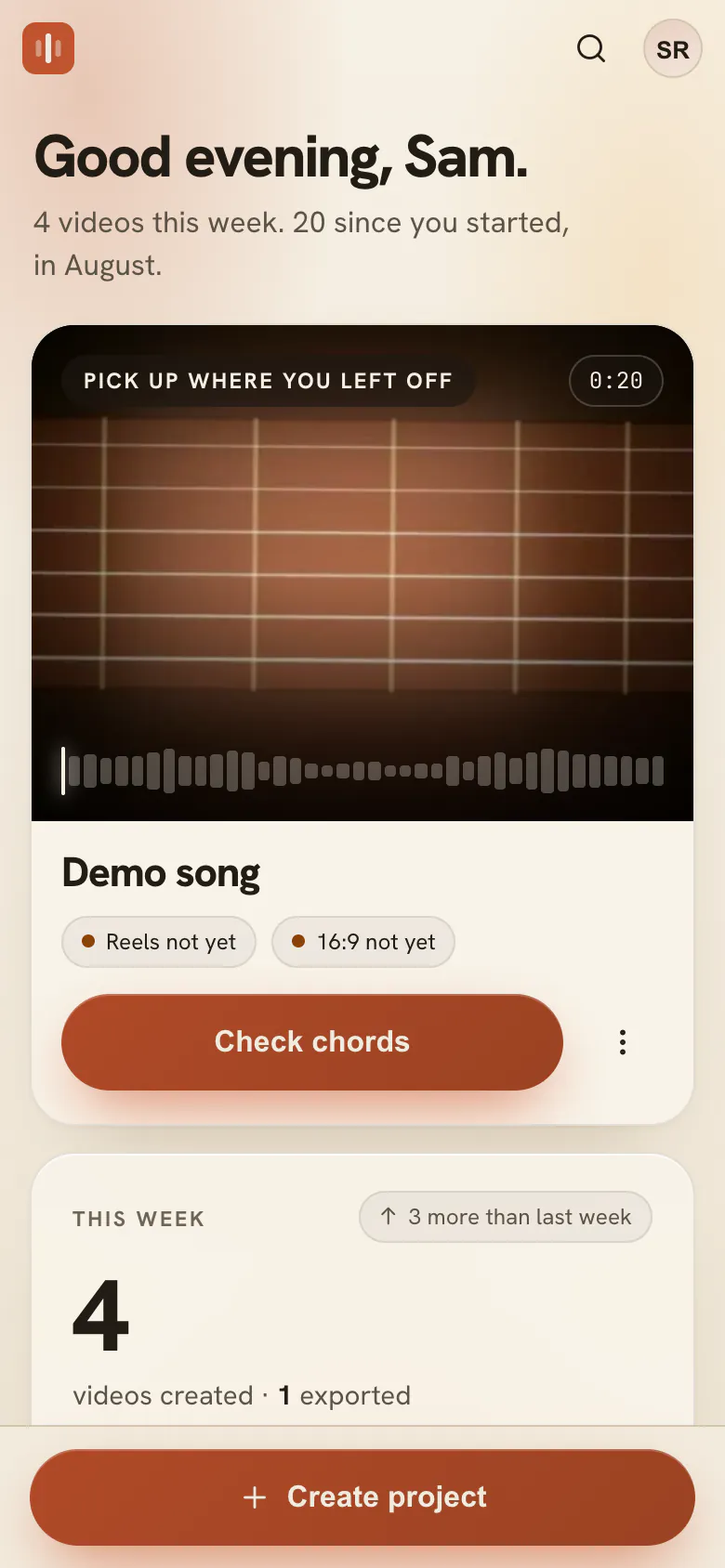
The phone’s home is the same in one column: the bar with the FlowChord mark, your balance (or your plan’s minutes) and your account; the greeting; the stage with one button; the week’s card, then the month’s, the weeks’ and the projects’; one bubble of FlowChord Intelligence at a time; your brand as a row; your projects two to a row with the filters scrolling sideways, and See all. The bar of pages floats at the bottom; Create project is at the top of your projects, beside the page’s name, and opens your phone’s picker (FlowChord on your phone).
Tips
- The chords and the song’s shape over the stage come from what the editor read in this browser: open a project once and they are there on your next visit.
- Not now never loses anything: the suggestion only stops being shown. Doing what it says makes it go for good, since its reason is gone.
- The numbers count a project as made when its chords landed, and as exported in the week each export was made.
- Everything the home shows is on its own page too: the stage’s project in your projects, the suggestion to save a preset on your presets.
Common problems
There are no numbers beside the stage. They appear from 3 projects, or once the account is 14 days old. With one project, Next steps stands there.
The chords over the stage are missing. They come from the editor’s reading in this browser. Open the project once; on your next visit they are there.
I don’t see FlowChord Intelligence. No rule applies right now, or you pressed Not now within the last 30 days. It is not a setting: there is nothing to turn on.
The stage shows the wrong project. It is always the one you worked on last. Open the one you want and it takes the stage.
Was this article helpful?
Still stuck?
Write to us and a person on the FlowChord team will answer by email.
Contact us