Find, rename and delete your projects
How the projects page is ordered and filtered, how to search it by name, chord or lyric, and how to rename or delete a project from its tile.
Updated October 28, 2026
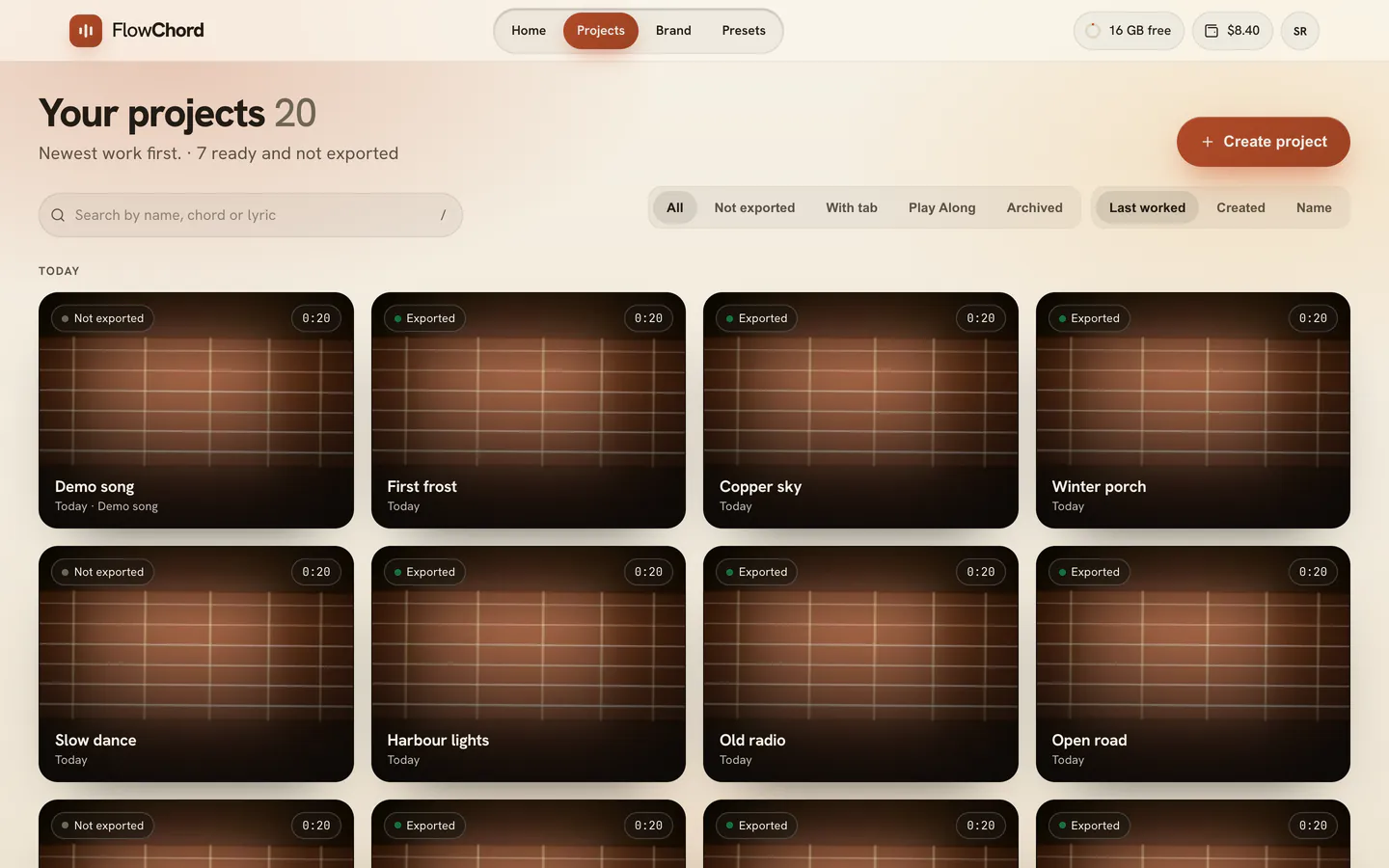
Your projects holds every project you have made. Open it with Projects in the bar at the top of every page. It has a search box that finds a project by its name, its chords or its lyrics, filters and orders over the list, and your projects as tiles, the ones you worked on most recently first.
Steps
Open a project
- Find the project’s tile. In the usual order, Last worked, projects are grouped under Today, Past 7 days, Past 30 days and Earlier, by when you last worked on them.
- Click the tile to open it in the editor.
More projects load as you scroll down. You can also click Show more projects at the end of the list.
Search for a project
- Click the search box, Search by name, chord or lyric, at the top of the page, or press /.
- Type part of the song’s name, a chord or a line from the lyrics. Results appear as you type, best match first.
- Click a result to open it, or press Enter to open the first one.
- To go back to the full list, click the × in the box, Clear search, or press Esc.
Filter and order the list
- Press a filter beside the search box: All, Not exported, With tab, Play Along or Archived.
- Press an order: Last worked, Created or Name. By creation or by name the tiles are one list, without the groups.
The filter and the order stay in the page’s address, so coming back from a project finds the list as you left it. When a filter holds nothing, See all brings every project back.
Rename a project
- Right-click the project’s tile. On a phone, hold a finger on it; from the keyboard, press the menu key on the tile.
- Choose Rename.
- Type the new name under Project name and click Save.
You can do the same from inside the editor: click the project’s name in the bar at the top, or choose Rename in the project’s menu (⋮) beside Export video.
Delete a project
- Right-click the project’s tile.
- Choose Delete.
- Read the message and click Delete project.
Options
The project menu
| Item | What it does |
|---|---|
| Export | Opens the export dialog without opening the editor. Shown once the project is ready and its footage is kept. |
| Rename | Gives the project a new name. |
| Delete | Deletes the project and frees its storage space. |
What a tile can say
| Label | What it means |
|---|---|
| A duration | The project is ready; this is how long the song is. |
| Exported, Not exported | Every cut of the project has been exported, or none has. With one cut still to go, the chip names its shape as pending. |
| Free | This is your free video: only its first 30 seconds are analysed and exported. |
| Detecting chords, Uploading, Optimizing | FlowChord is still working on it. |
| Recording in progress | A Play along project that hasn’t been finished yet. |
| Failed | Something went wrong. Open it to see what and try again. |
| Archived | A paid project left unopened for 6 months (never while you have a monthly plan). Its video files were deleted; the chords, lyrics and settings are kept. Upload the video again to restore. |
| Footage removed | A free video’s footage is deleted 30 days after it was made, unless you unlocked it. The chords and lyrics stay. |
Under the name, a tile says when you last worked on the project — Today, Yesterday, days or weeks ago, or the month — and the song’s title from its song card, or the preset it started from. A tile whose video is gone is greyed and says chords and lyrics kept; the group’s heading counts how many of its projects are so.
Tips
- Search finds chords however you write them:
Bbalso findsA#, andD7Malso findsDmaj7. A search forAm7findsAm7/Gtoo. - Accents and capitals don’t matter:
coracaofinds “Coração”. - Search also looks at the song’s title and artist, the chord sheet’s title and the names of the files you uploaded. Each result says where it matched: Song, Chords, Lyrics or File.
- A project moves to the top of the list when you change something in it.
- The line under the page’s heading says how many projects are ready and not exported, and how many have their video archived.
- To make another version of the same song, such as a short clip or a horizontal video, add a cut to the project instead of making a new one. See Cuts.
- To see which projects take the most space before deleting, open the storage panel. See Your storage space.
Common problems
I can’t find a project. Clear the search, set the filter to All and scroll down: older projects load as you go. Try one word of the name, or a chord you know is in the song.
Couldn’t search right now. Click Try again. If it keeps failing, reload the page.
There is no Export in the menu. The project is still being made, or its footage is archived or removed. Open the project to see what it needs.
There is no way to duplicate a project. FlowChord doesn’t copy projects. Add a cut to make another version of the same song.
There is no search box on my phone. The phone’s library lists your videos in one column, the most recently worked on first, without search. Hold a finger on a video for its menu. Use a computer to search.
Was this article helpful?
Still stuck?
Write to us and a person on the FlowChord team will answer by email.
Contact us