See and free up your storage space
What counts toward your FlowChord storage, where to see how much is left, what happens when it is full and how to free space.
Updated October 28, 2026
Every FlowChord account has room for the files your projects keep: 16 GB, or more on a monthly plan. Space is counted in bytes, not in projects, so you can keep as many projects as fit. When it is full, FlowChord stops storing new files until you free some space. Everything else keeps working: you can still open, edit, export and delete your projects.
Steps
See how much space you have
- Look at the storage pill at the top right of the page, beside your balance. It shows how much space is free, and turns amber when your storage is almost full and red when it is full.
- Click it to open the Storage panel. You can also open it from the account menu: click your picture, then Storage.
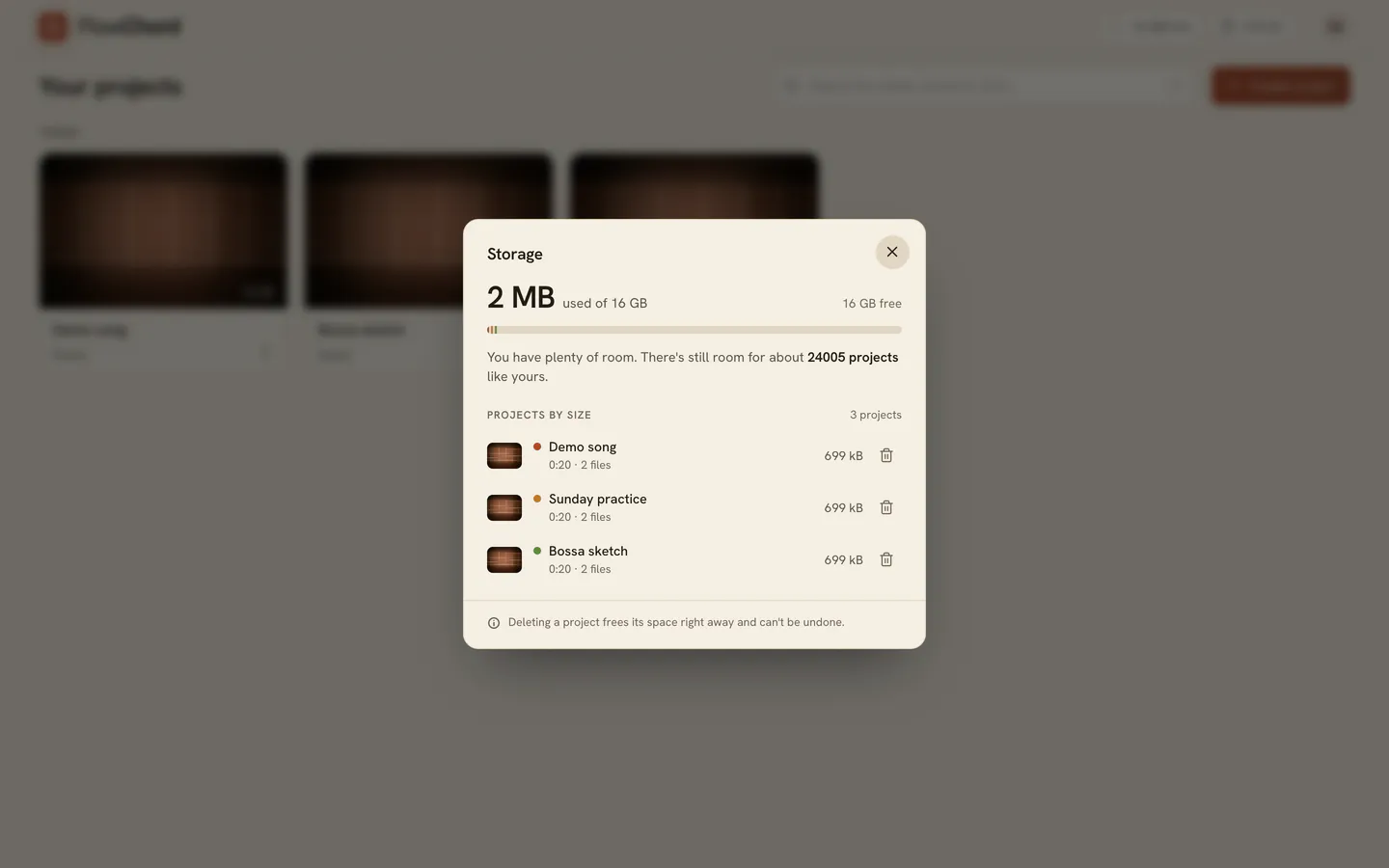
- At the top, the panel shows the space you use out of your total, and how much is free. The bar under it is split by project, so you can see which ones take the most.
- Under Projects by size, your projects are listed from largest to smallest, each with its length, its number of files and its size.
Free up space
- Open the Storage panel.
- Find a project you no longer need under Projects by size. The largest are at the top.
- Click the bin icon on its row.
- Click Delete project to confirm.
The space comes back as soon as the project’s files are removed, and the panel updates. You can also delete a project from its tile’s menu in your projects (a right click on the tile) or from inside the editor. See Find, rename and delete your projects.
Options
What counts and what doesn’t
| Counts | Doesn’t count |
|---|---|
| The videos and audio files of your projects, as FlowChord stored them | The videos you export: they are saved on your device |
| Their preview pictures and the shapes of their sound | Your profile picture |
| Chord sheets, song covers, backgrounds and images you place on the video | Play along takes, which stay on your computer until you finish the recording |
FlowChord makes every file smaller in your browser before it is uploaded, so a project usually takes less space than the files you picked.
More space with a plan
The monthly plan, Creator, comes with more room: 100 GB. When your storage is almost full or full and the plan is available to you, the panel says A larger plan has more room, with See plans to compare. See Monthly plans.
If a plan ends or you move to a smaller one, nothing is deleted. If you are then over the new limit, new files are refused until you free space.
Tips
- Under the bar, the panel says in a sentence how much room is left, often as how many more projects like yours still fit.
- While a project is being created, FlowChord sets aside the space its files will need. The panel says how much is held for uploads in progress; it is given back when the upload ends.
- A free video’s footage is deleted 30 days after it was made unless you unlock it, which frees its space too.
- On a phone, open the panel from the account menu, under Storage.
Common problems
Storage full when creating a project. The new project’s files don’t fit. Click Manage storage, delete a project you no longer need, then create the project again. See Storage full.
Storage full on a project page. The project’s files didn’t fit while they were uploading. Click Manage storage to free space, then Choose video again.
I deleted a project but the space didn’t come back yet. The panel shows a note while files from deleted projects are being removed. Give it a moment and open the panel again.
Storage unavailable. FlowChord couldn’t read your storage just now. Click the pill to try again.
Was this article helpful?
Still stuck?
Write to us and a person on the FlowChord team will answer by email.
Contact us