Make your first video
The quick path from an empty library to a finished chord video, in a dozen clicks.
Updated October 28, 2026
This is the shortest way from a recording of you playing to a finished video with the chords and lyrics on screen. It uses a computer and a Standard project with one video. Each step links to a fuller article when you want more.
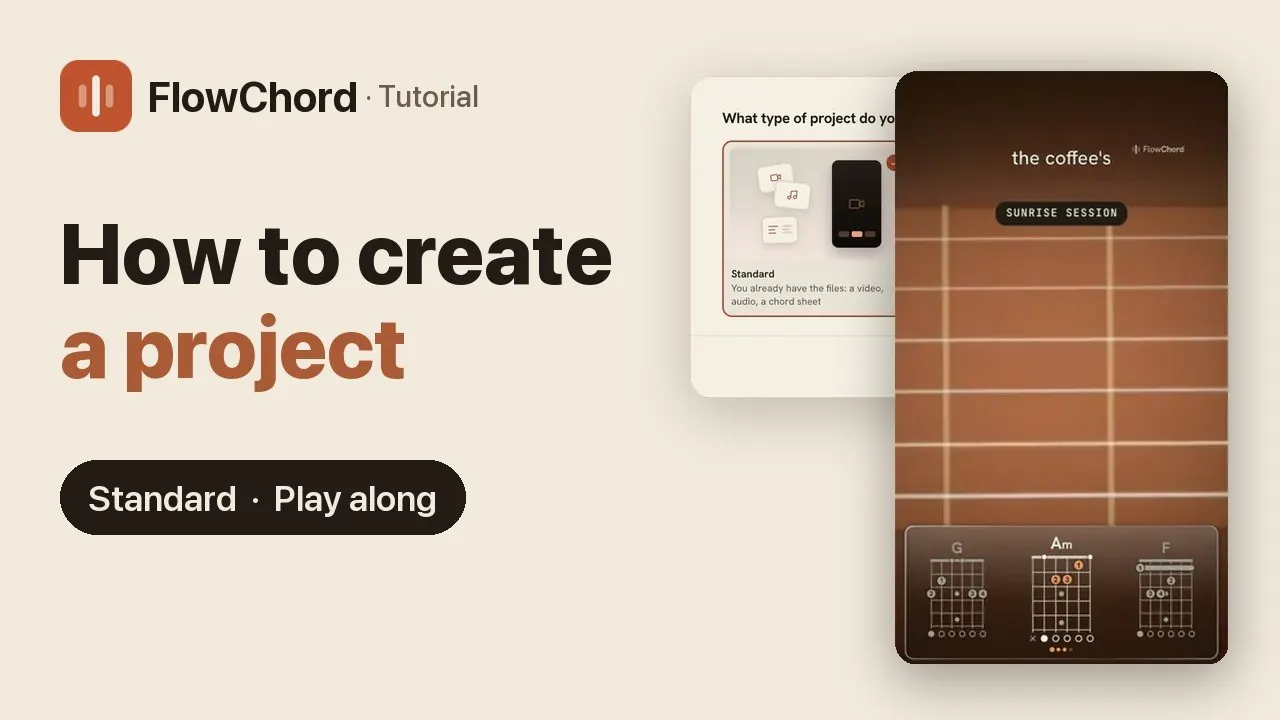
Steps 1 to 7, creating the project, are also a short video:
Before you start
- You are signed in to FlowChord on a computer, in an up-to-date browser (Supported browsers). On a phone the path is a little different: see FlowChord on your phone.
- You have a video of yourself playing, as MP4, MOV or WebM, up to 800 MB.
- Your balance covers the song, or you haven’t used your free video yet. You don’t need to sort this out first: FlowChord tells you the price before anything is charged.
Steps
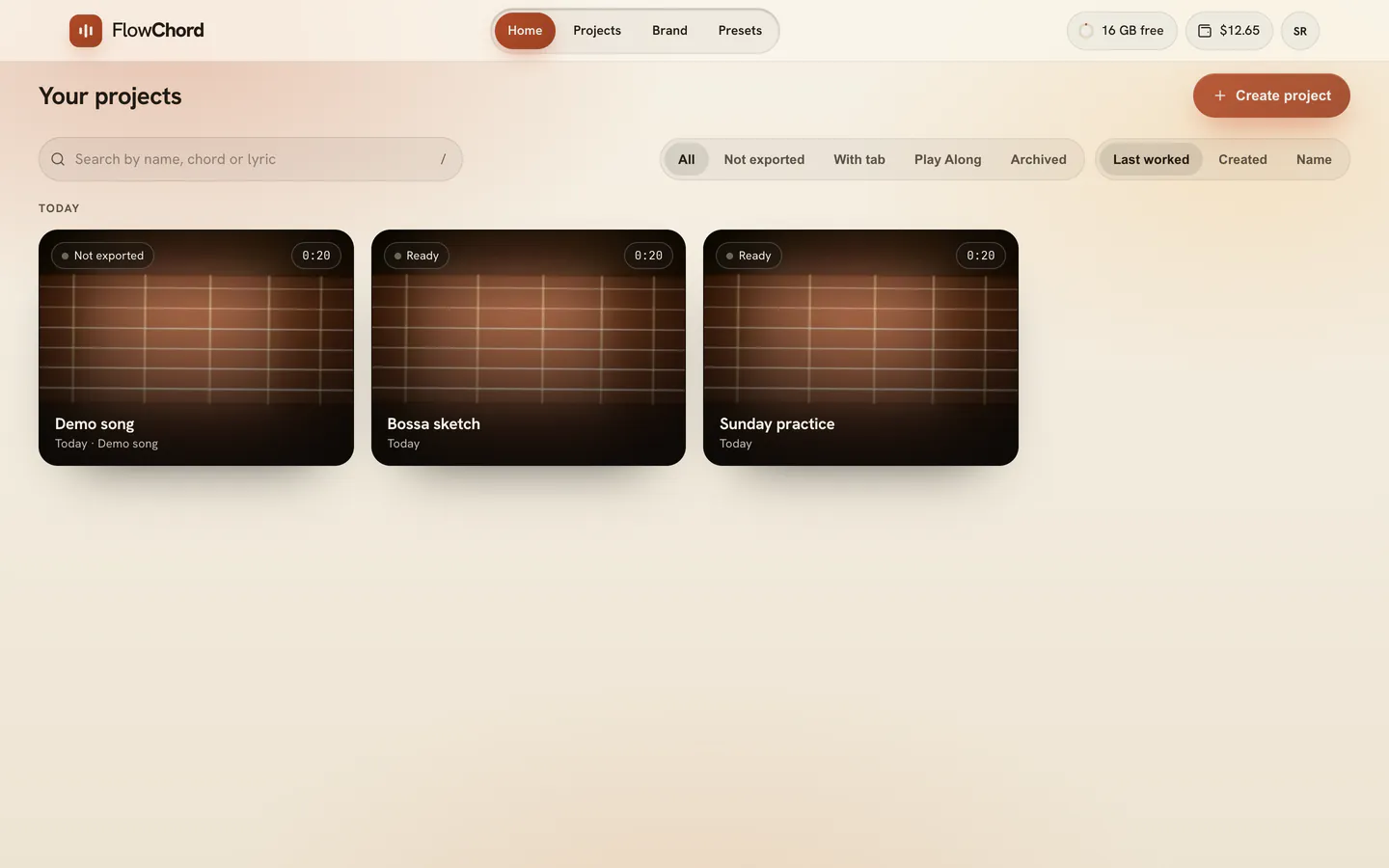
- In your projects (Projects in the bar at the top), click Create project. With no projects yet, you can also drag the video file onto the page.
- Choose Standard and click Continue.
- Drop your video on the dialog, or click Choose files and pick it. Its card says Main video once FlowChord has read it.
- Check the name under Project name: FlowChord suggests one from the file. Type another if you like.
- Under Cuts, below the video, the cuts are chips: one vertical cut of the whole song is already there. Press a dashed chip to add another shape (square or horizontal), and a cut’s chip to choose how much of the song it takes: Whole song or a shorter part, which FlowChord picks for you.
- Look at the line at the bottom of the dialog: it says how long the song is and what it costs, or that this will be your free video. If your balance is short, click Add funds and top up in the tab that opens.
- Click Create project.
- Wait while FlowChord prepares and uploads your files and detects the chords and lyrics. Keep the page open until the upload is done.
- When the editor opens, press Space to play the song and watch the chords.
- If a chord is wrong, click it on the timeline under the video and pick the right one. See Fix a chord.
- Click Export video at the top right.
- Tick the cuts you want and click the export button at the foot of the dialog. Each cut downloads as its own MP4.
Tips
- Once the project is made, editing it and exporting it again cost nothing more. Try things out.
- Shorter parts of the song are great for Reels and Stories; you can add or change cuts later in the editor. See Cuts.
- Changes in the editor save themselves. You can close the tab and come back to the project from the library at any time.
- Learn the editor’s layout in A tour of the editor, and when you are ready for more files (extra audio, a chord sheet — dropped in the same place), see Create a project.
Common problems
That file type isn't supported, use MP4, WebM or MOV. Convert the video to MP4 or MOV and try again. See Upload problems.
Upload interrupted. The page was closed before the upload finished. Open the project and click Choose video again, then pick the same video.
Storage full. There is no room left for this project’s files. Click Manage storage and delete a project you no longer need. See Your storage space.
The chords are mostly wrong. A noisy room, a quiet guitar or a strong backing track makes the chords harder to hear. See Problems with the chords or lyrics.
The export doesn’t start. See Export problems.
Was this article helpful?
Still stuck?
Write to us and a person on the FlowChord team will answer by email.
Contact us