Fix a chord, its fingering or its shape
Rename a chord the analysis got wrong, pick the fingering you really play, or draw the shape by hand.
Updated October 22, 2026
FlowChord names every chord it hears and draws a diagram for it, but you know your own playing best. When a name is wrong, or the diagram isn’t how your hand holds the chord, fix it from the chord’s card. A change goes on the one chord you picked unless you ask for every chord like it.
Before you start
- Open the project in the editor once its analysis has finished. The chords sit along the Timeline under the video, one capsule per chord.
- Turn the sound on: hearing the chord is the quickest way to know what it is.
- If you play with a capo or in another tuning, set that first (capo and tuning). The names and diagrams then show the shapes under your hand.
Steps
Change the chord’s name
- Click the chord’s capsule on the timeline. Its card opens beside the video, with the chord’s name at the top.
- Press Hear it (the play button at the top of the card) to hear just that chord.
- Under Which chord is it?, click one of the suggested chords, or click the search box and type.
- Pick the chord from the list. The capsule and the video change at once.
The search reads a name in either notation (G7M or Gmaj7, in any letter case, with roots like Do or Re too) and also the shape itself: type the frets from the lowest string to the highest, like x32010, and the chord those frets make appears under From your frets. Chords already in the song are marked in the song. The chord notation guide explains how to type a shape.
Choose how it is played
- Pick the chord on the timeline.
- Under How is it played?, look through the fingering cards with the arrows at their sides.
- Click the card that matches how you play it. The diagram on the video changes to it.
Draw the shape by hand
- Pick the chord and press Edit the shape. The How you play it window opens on the chord’s current shape.
- Click a string at a fret to put a finger there. Click a finger to take it off, drag it along the string to move it, or along its fret to lay a barre.
- To type the shape instead, write it in Frets, low to high, for example
x 3 2 0 1 0. - Right-click a finger to give it a number, or choose No number.
- Press Apply. The chord keeps its name and takes the new shape. If the shape you drew is another chord (it leaves out one of the chord’s notes, or you picked another name under Sounds like), the window says so and asks before renaming the chord to what the shape plays; press Rename to rename it, or Cancel to keep drawing.
Options
The chord card
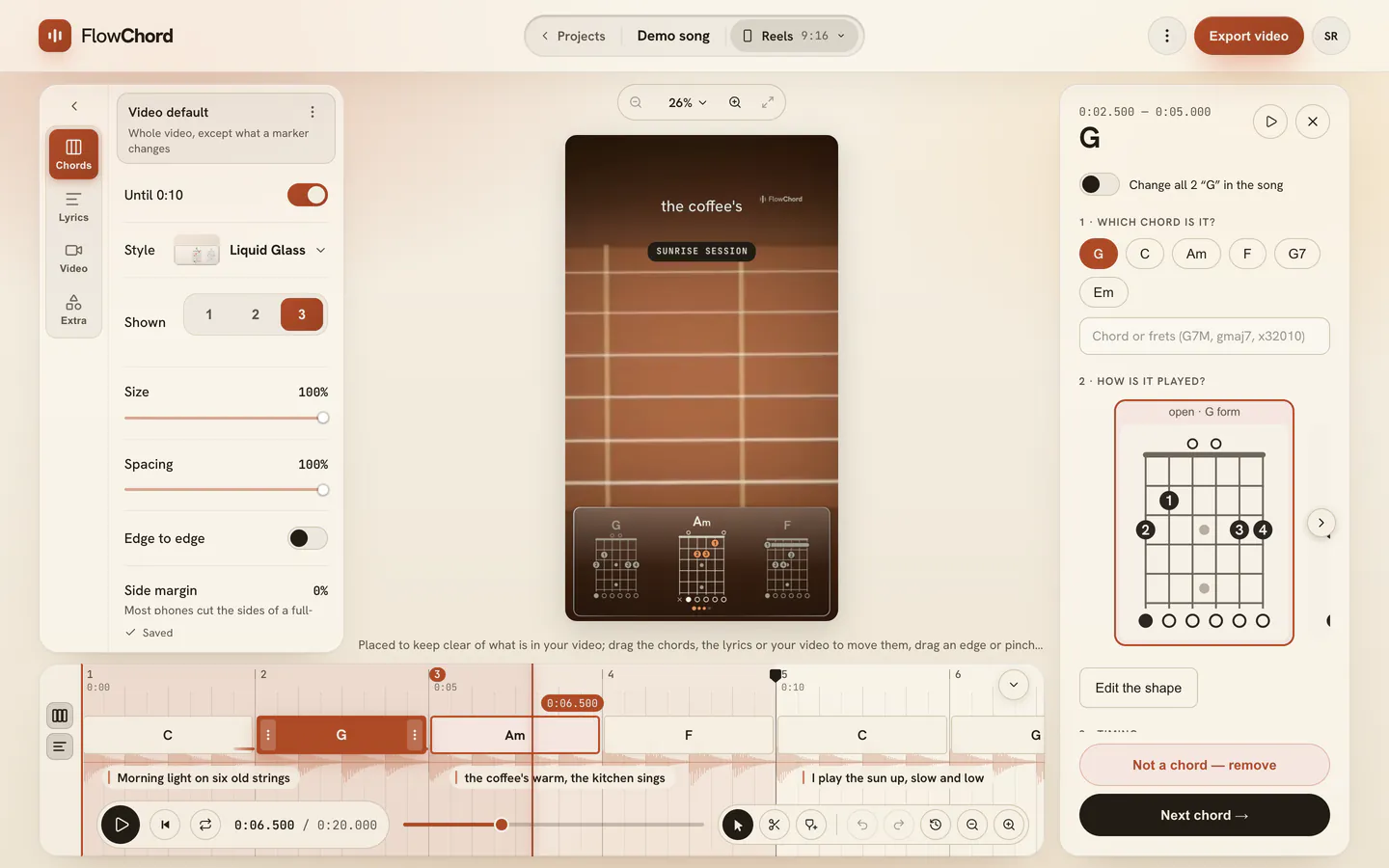
| Part of the card | What it does |
|---|---|
| Hear it | Plays that chord alone. |
| Which chord is it? | The likeliest chords for this spot, and a search for any other. |
| How is it played? | The fingering cards. The one in use is highlighted; you chose marks your own picks and others play it this way marks shapes other players chose. Outside the chord marks a shape of yours whose notes are not the chord’s name: a note the chord has no place for, a note the name asks for that is missing or played a half step off, or another note in the bass. |
| Edit the shape | Opens the shape editor on this chord. |
| Add a fingering | Draws a new fingering and keeps it in your chords, for every song. The chord you opened it from takes it too. If you named it as another chord, FlowChord asks first and renames the chord to that name; if it leaves out one of the chord’s notes, the window says which one. |
| Timing | The exact Starts at and Ends at times. See move, split and insert chords. |
| Not a chord — remove | Takes the chord out; its time is left empty. |
| Next chord | Moves the card on to the next chord, without playing. |
The fingering cards come in the order a teacher would show them: the shapes you or the song already chose, then shapes near where your hand is, then shapes in the first frets, then up the neck, and the five CAGED forms last. Each card says where it sits on the neck: open, or the fret it starts on.
Every shape FlowChord offers plays the chord as it is named, note by note: every note it sounds belongs to the chord, the notes the name asks for are there (only a plain fifth may be left out), and a chord written with a bass, like Bm7(#5)/E, has that note lowest. When no shape on the neck plays a chord, its diagram is left empty rather than showing another chord’s.
In the shape editor, Sounds like lists the chord names the notes you drew make, and Ways to hold it offers other ways to number the fingers for the same shape. Your own numbering is always kept as you set it.
The right-click menu
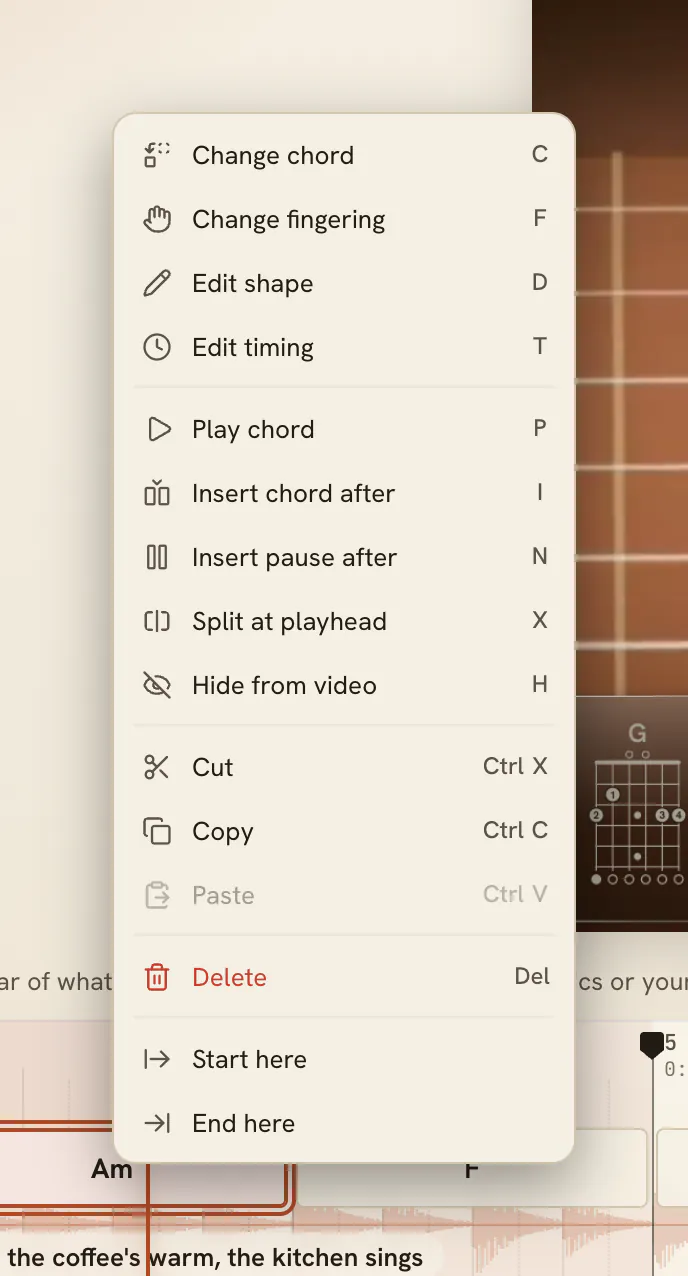
Right-click a chord’s capsule to see what you can do to it. Each action shows its key, and the key also works without the menu on the chord you picked.
| Action | Key | What it does |
|---|---|---|
| Change chord | C | Opens the chord search right over the capsule. |
| Change fingering | F | Shows the fingering cards in a row over the capsule. |
| Edit shape | D | Opens the shape editor. |
| Edit timing | T | Shows its start and end times. |
| Play chord | P | Plays that chord alone. |
| Hide from video | H | Keeps the chord off the video but on the timeline, drawn dimmed. Use it again (Show in video) to bring it back. |
The rest of the menu (inserting, splitting, copying and pasting chords) is in move, split and insert chords.
Changing every chord like it
When the chord appears more than once in the song, the card shows a switch above its steps to change all of them. It is off by default, so a change touches only the chord you picked. Turn it on and your next change asks once more: press Change all to change every one.
When the passage comes back
The analysis tends to hear a passage the same way every time it comes back, so a chorus with a wrong chord usually has it in every chorus. Fix it once and FlowChord fixes the rest with you.
- Rename a chord, or pick its fingering, with the switch above off.
- Wherever the song plays the same chords around it, for as long, the change goes there too, in the same step. A line at the bottom of the Timeline says how many other places it went to, and undo takes back all of it.
- Press Only here to keep the change only where you made it, or open Review: every place is listed by its time and ticked. Untick any you want to leave alone and press Apply — a place you untick stays as it is, and a later fix won’t change it again.
- Where the chords around it are only similar, the line asks first: open Apply to all, keep the places ticked and press Apply.
A change you make inside one of the places a fix went to stays there, its own way of playing the passage, and is only offered to the others. On a phone or in a narrow window, the chord’s sheet also has a switch to fix the repeats, with how many there are: on at first. Turn it off and the fix stays where you made it.
Tips
- Keep your hands on the keyboard: with a chord picked, ← and → walk the song, Enter takes you into the card and Esc brings you back to the timeline. See keyboard shortcuts.
- The small editors that open over the capsule have Open panel to carry on in the card, and the fingering row has Draw to go straight to the shape editor. In that row, a number key takes that card at once.
- A fingering you settle on is remembered: the next song with that chord offers your shape first.
- Renaming a chord keeps its fingering while that shape still plays the new chord; otherwise it takes the fingering the song already uses for the new name.
- With a capo, the card names the shape your hand makes and says under the name what it sounds as.
Common problems
The search says it doesn’t know the chord. Type a root (A to G, with # or b) and then the chord’s type, like F#m7 or Bb7M, or type the six frets, like x32010.
No fingering cards appear. FlowChord has no shape for that name yet. Press Edit the shape to draw it, or Add a fingering to keep it in your chords.
Too many chords changed. The switch to change every chord like it was on. Press ⌘ Z (Mac) or Ctrl Z (Windows) to undo, or open Change history on the timeline to go back further.
I want the chords as they were first detected. Open Change history and press Restore original. It brings back every chord of the analysis and clears the history, so it asks you to confirm first.
Add a fingering is missing. On a drop or open tuning your saved chords can’t be used. Press Edit the shape to draw the shape for this chord instead.
The diagram on the video isn’t the one I picked. If you renamed the chord after picking a fingering, the old shape may not play the new chord, so FlowChord draws another one. Pick the card again.
Was this article helpful?
Still stuck?
Write to us and a person on the FlowChord team will answer by email.
Contact us