Fix the lyrics
Correct a lyric line's words, split or merge lines, change when a line is sung, add a missing line or hide one from the video.
Updated October 22, 2026
FlowChord writes down what was sung and shows each line on the video while it is sung. A transcription can mishear a word, join two phrases into one line or miss a line altogether. Every one of those is fixed on the lyrics lane of the timeline, under the chords, and in the line’s card beside the video.
Before you start
- Open the project in the editor once its analysis has finished. Each lyric line sits on the lyrics lane at the time it is sung.
- Play the part you are fixing so you can hear the words: click the line, then press the play button at the top of its card (Hear it).
Steps
Correct a line’s words
- Click the line on the lyrics lane. Its card opens beside the video.
- Change the words in the Text box. They are saved as you type.
- Press Enter to apply it at once, or Esc to leave the box.
A word you correct keeps the time the original word was sung. Words you add are paced along the line to the song’s beat.
Split a line in two
- Pick the line.
- Under the text box, in Split into two lines, point between two words: the words that would become the new line light up, and the card says when it would start.
- Click there. Each part keeps the time its words were sung, and the new line starts on the beat when one is near.
You can also type a line break with Shift Enter where the line should break and then press Enter.
Join a line with the one before
- Pick the second of the two lines.
- Press M, or right-click it (on a phone, press and hold it) and choose Merge with previous.
Change when a line is sung
- Drag the line along the lyrics lane to move it to a new time.
- Pick the line and drag the grips at its ends to change when it starts and how long it stays on the video.
- For exact times, type them under Timing in its card.
Add a missing line
- Point at an empty stretch of the lyrics lane. A plus and the time appear.
- Click it, and a field opens in the lane.
- Type the line, then Enter. The line is as long as its words take to sing.
Hide a line from the video
- Right-click the line.
- Choose Hide from video. The line stays on the timeline, drawn fainter with a crossed-out eye, and is left off the video.
Options
The right-click menu
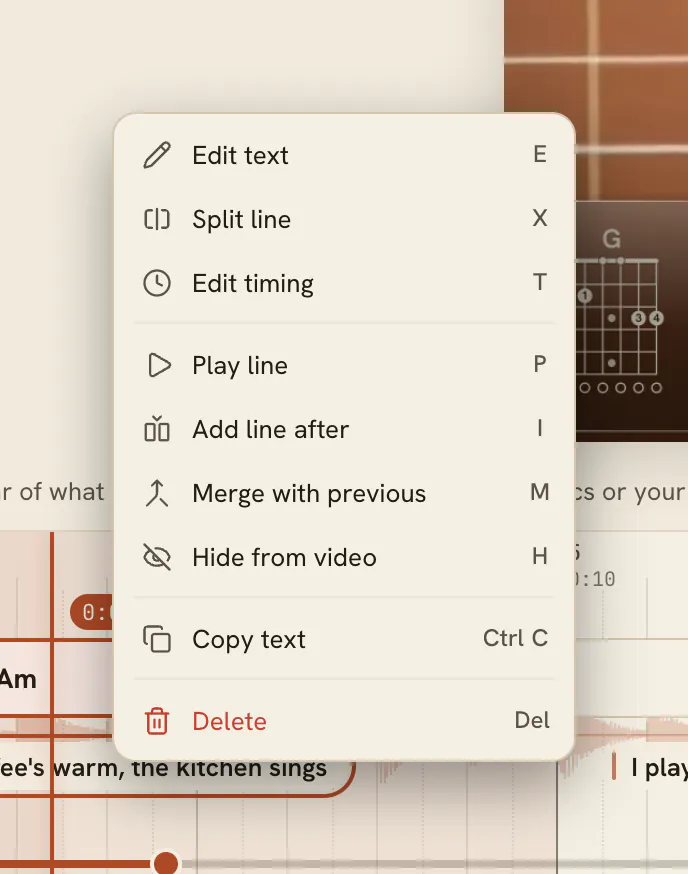
Right-click a line on the lyrics lane to see what you can do to it. The keys also work without the menu on the line you picked.
| Action | Key | What it does |
|---|---|---|
| Edit text | E | Opens the line’s words right over it. |
| Split line | X | Shows where the line can split; the arrows walk between the words. |
| Edit timing | T | Its start and end times. |
| Play line | P | Plays that line alone. |
| Add line after | I | Opens a field to type a new line right after it. |
| Merge with previous | M | Joins it to the line before. |
| Hide from video | H | Keeps it off the video; use it again (Show in video) to bring it back. |
| Copy text | ⌘ C | Copies its words. Ctrl C on Windows. |
| Delete | Delete | Removes the line. |
When a line comes back
A transcriber tends to mishear a refrain the same way every time it is sung. When you fix a line’s words or split it, every other line that sings the same words takes the same fix, in the same step — only the words you changed, so the rest of each line stays as it is. A line at the bottom of the Timeline says how many lines it went to: Only here takes that back, and Review lists them to untick any. A line that holds those words among others is only offered: open Apply to all and press Apply. Very short lines, like “oh, oh”, are left alone. This works on a computer.
Lyrics from a chord sheet
If you created the project with a chord sheet, the sheet decides the words wherever the recording sings them, and where the lines break; the recording decides when, and whether, each line is sung. When the sheet’s words differ from what was heard, the line’s card shows a button that starts with “Use what was sung” and the words that were heard: press it to keep those instead. The same button shows on a line FlowChord tidied when it checked the lyrics for obvious mistakes (how it works).
Tips
- With a line picked, ← and → walk the lines, and ↑ ↓ jump between a line and the chord playing when it starts. See keyboard shortcuts.
- Next line in the card moves on to the next line without playing the video.
- On a phone or in a narrow window, while you type a line’s words, Split here, Join next, As sung, Previous and Next sit on top of the keyboard. Split here starts the second line at the word the cursor is in.
- In the text box the first Esc leaves the box and keeps what you typed; the next one closes the card.
- A line fades out when it ends. To keep it on screen longer, drag its end grip later.
- Every change is one step to undo with ⌘ Z (Mac) or Ctrl Z (Windows).
Common problems
The lyrics are in the wrong language, or missing. Lyrics aren’t transcribed again after a project is created. Type the lines in yourself, or see problems with the analysis.
I emptied the box and the words came back. A line is never left empty. To remove it, use Delete line in its card or press Delete.
My line split when I pressed Enter. The text had a line break in it, and a line break splits the line. Undo, then type the words without the break.
There’s no room for a line there. There’s no open stretch long enough at that spot. Shorten the line before, or add the new line after it with Add line after.
Added words show up too fast or too slow. Words nobody sang on the recording are paced to the song. Split the line where the singing changes, or drag its grips so the line lasts as long as it is sung.
I want the lyrics as they were first detected. Open Change history on the timeline after a lyrics change and press Restore original. It brings back every original line and clears the history, so it asks you to confirm first.
Was this article helpful?
Still stuck?
Write to us and a person on the FlowChord team will answer by email.
Contact us