Change the lyric style, colour and placement
Pick how the lyrics appear on your video, then set their colour, opacity, size, width, alignment and where they sit.
Updated October 22, 2026
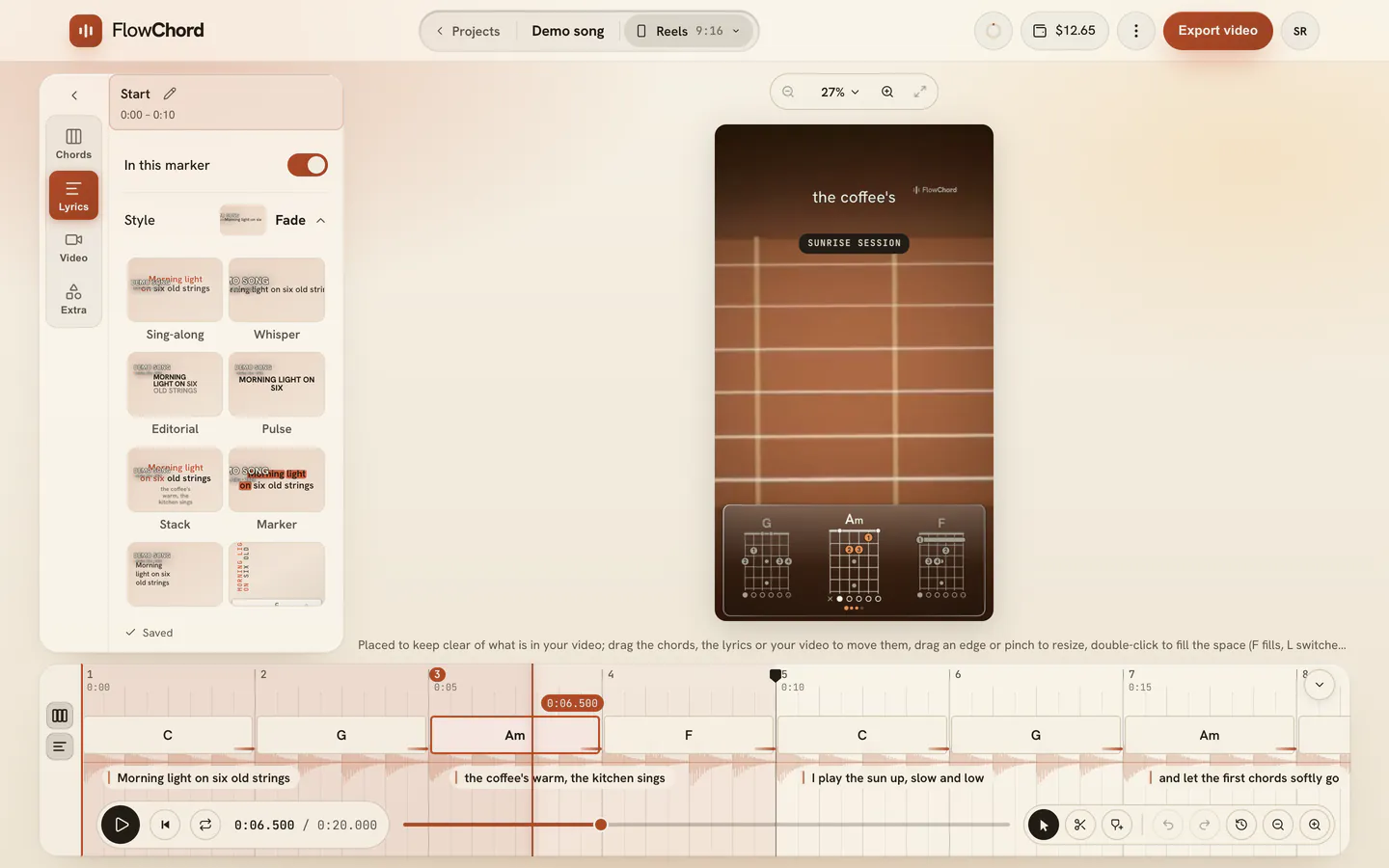
Your lyrics can appear on the video in many ways: words lighting up as they are sung, fading in one by one, popping up around the picture, written by hand and more. Pick a style, then adjust the colour, size and place to suit your video. Everything is in the Lyrics tab of the settings card.
Before you start
- Open the project in the editor. The look of the lyrics belongs to the cut you are editing, so each cut can have its own (cuts). If the cut has markers, your changes go to the stretch under the playhead (markers).
- To change the words themselves, see fix the lyrics.
Steps
Pick a style
- In the settings card beside the video, open the Lyrics tab.
- Click the Style row. It opens on a tile for every style, drawn over a frame of your own video.
- Click a tile. The video changes at once; play it to see how the words come in.
Change the colour and opacity
- In the Colour row, pick a colour, or From the style to let the style choose.
- For a colour from your video, press the eyedropper (Pick from video) and click the spot on the video whose colour you want. For an exact one, press More colours (#) and type its HEX code, or pick one of My brand colours.
- Drag the Opacity slider to make the lyrics more see-through.
Place the lyrics on the video
- On the video, drag the lyrics to where you want them.
- Drag an edge to change their size, or use the Size and Width sliders in the tab.
- To put them back where they started, press Reset at the end of the tab.
Options
The rows of the Lyrics tab
| Row | What it does |
|---|---|
| In this cut | Shows or hides the lyrics on this cut’s video. The timeline keeps them either way. |
| Style | The lyric style. |
| Size | How big the words are. |
| Width | How wide the lyrics are. Narrower breaks a line into more rows. |
| Max lines | The most rows a lyric line may take. A longer line is still shown whole, in wider rows. |
| Alignment | Left, Center or Right. |
| Capitals | As written, All capitals or All lowercase. |
| Colour | The words’ colour: the style’s own, one of the swatches, or one taken from the video. |
| Opacity | How solid the lyrics are, words and shadow together. |
Alignment and Capitals start at what the style does; choosing the style’s own value again lets them follow the style.
The styles
| Style | What it does |
|---|---|
| Sing-along | Words light up as they are sung |
| Whisper | Small, quiet type that stays out of the way |
| Editorial | Big, calm lines like a magazine pull quote |
| Pulse | Each word lands on the beat |
| Stack | Lines pile up as the verse goes on |
| Marker | A highlighter sweeps across each line |
| Drift | Lines float up and fade away |
| Margin | Lyrics sit in the margin beside the chords |
| Caption | Bold words that pop in, a few at a time |
| Fade | Each word fades in softly as it is sung |
| Scatter | Words pop up around the picture as they are sung |
| Handwritten | The line written by hand as it is sung |
| Block | Bold narrow capitals, word by word |
| Paper | Hand-lettered capitals on torn paper |
Tips
- New projects start with Fade.
- A line is never cut short: it is always shown whole, at the size you chose. If it doesn’t fit the width, it takes more rows and the lyrics grow taller, away from the chords.
- With From the style, the words turn light over dark parts of the video and dark over light parts, and a soft shade comes in under them over a busy picture.
- Reset puts back the lyrics’ position, size, width, rows and alignment. It leaves the colour and opacity as you set them.
- A line stays on the video until it ends. To keep one up longer, drag its end on the timeline (fix the lyrics).
Common problems
The lyrics aren’t on the video. The In this cut switch is off for this cut. Turn it on in the Lyrics tab. If only one line is missing, it may be hidden from the video on the timeline.
Words only appear as they are sung. That’s how some styles work, such as Fade, Pulse and Scatter. Pick a style like Sing-along to show the whole line from the start.
The lyrics take too many rows. Make them wider with Width, make the words smaller, or lower Max lines.
The colour I picked doesn’t paint the words in Paper. In that style the colour is the paper’s, and the words take whichever ink reads on it.
The lyrics cover the chords or something in the picture. Drag them on the video, or press Reset to put them back.
Was this article helpful?
Still stuck?
Write to us and a person on the FlowChord team will answer by email.
Contact us