Fix notes in the guitar tab
Write on the tab directly — click a string to add a note, drag a note to move it, type its fret — and keep notes off the video.
Updated October 22, 2026
FlowChord writes every note of the guitar as a string and a fret, counted from the nut and shown from the capo when there is one. When a note is wrong — the wrong pitch, the wrong place on the neck, a bit early — you fix it right on the tab’s lines in the timeline, the way you would on paper. Every change is one step you can undo.
Before you start
- You need a project with a tab (see Guitar tabs: how they’re made).
- Zoom the timeline in until you see numbers on the Guitar tab lane: S zooms in, A zooms out. Zoomed out, each phrase is a rounded block — click one to jump in on it.
Steps
Add a note
- Move the pointer over a string line. A small dashed box shows where a click will put the note — on that string, at the moment the recording has a note struck right there, or in the same column as a note right beside it on another string (so a chord you write is struck together), otherwise on the nearest line of the beat grid. Moving the pointer never writes or changes a note.
- Click. An empty box opens there, waiting for the fret.
- Type the fret: 7, or two digits quickly for 1 2. The note is written with the number you typed and picked. Esc closes the box without writing anything. To write the next note, click straight on its spot: the number you typed is written and a new box opens there.
Hold Alt as you click to place it exactly under the pointer instead of on the grid. To move the new note, drag it once it is written.
Move a note
- Drag the note left or right to move it in time. It lands on a moment the recording has a note struck, or in the column of a note beside it, or else always on the nearest line of the beat grid — zoom in to see the lines between the beats and land on those; hold Alt while you drag to put it at an exact time.
- Drag it up or down onto another string. The number stays the same, so the note plays that fret on the new string.
- If a note can’t go where you’re dragging it — off the neck, or onto a string another note is played on at that moment — it’s outlined, and it goes back when you let go.
To move several notes at once, hold Shift and click the last one to pick a run, then drag any of them.
To pick notes on several strings at once, press on an empty part of the tab’s lines and drag: a box follows the pointer, and the notes it touches light up. Let go to pick them. Hold Shift as you drag to add them to the notes already picked; Esc while you drag drops the box. A drag that starts on a note still moves that note.
A note joined to another by a slide, a hammer-on, a pull-off or a tie moves with it: drag either one and the two stay together.
Change the fret or the string
- Click a note to pick it, then type the fret: 7, or two digits quickly for 1 2. The number changes as you type — no Enter needed. + and - step it by one.
- Hold ⌘ (Mac) or Ctrl (Windows) and press ↑ or ↓ to move the note to the next string keeping its number — it then plays that fret on the new string. With Shift held too, the note keeps its pitch instead and the fret changes to the one that plays it there; if that string can’t reach the note, nothing changes.
The arrow keys on their own never change a note: they only move you around the tab. ← and → go along the string from one spot to the next — the next note, or the next line of the beat grid — and ↑ and ↓ go to the string above or below at the same moment. Where a note is, it’s picked; where the string is empty, a dashed box marks the spot, and nothing is written until you type a fret there. Typing a fret on an empty spot writes a note with that number; two digits quickly make one note, like 12.
To move the note you’re on, hold ⌘ (Mac) or Ctrl (Windows) with the arrows: ← and → one step of the grid in time, ↑ and ↓ across the strings. A note never moves onto a spot another note already holds on that string: the move is refused and the note stays where it was.
A note you changed is settled: FlowChord will never move it again. Only that note changes — the notes around it stay where they are. To play the whole phrase elsewhere on the neck, press F or P — see Choose how a phrase is fingered.
See everything about a note
- Double-click a note (or press Enter with it picked). A small window opens over it with its string, fret, Technique, start and length, whether it’s a Ghost note (struck softly, written in parentheses), and whether it’s Confirmed or From the file. Technique offers Legato slide: a slide drawn with a slur over it, the second note not picked again.
- Press Esc to close it.
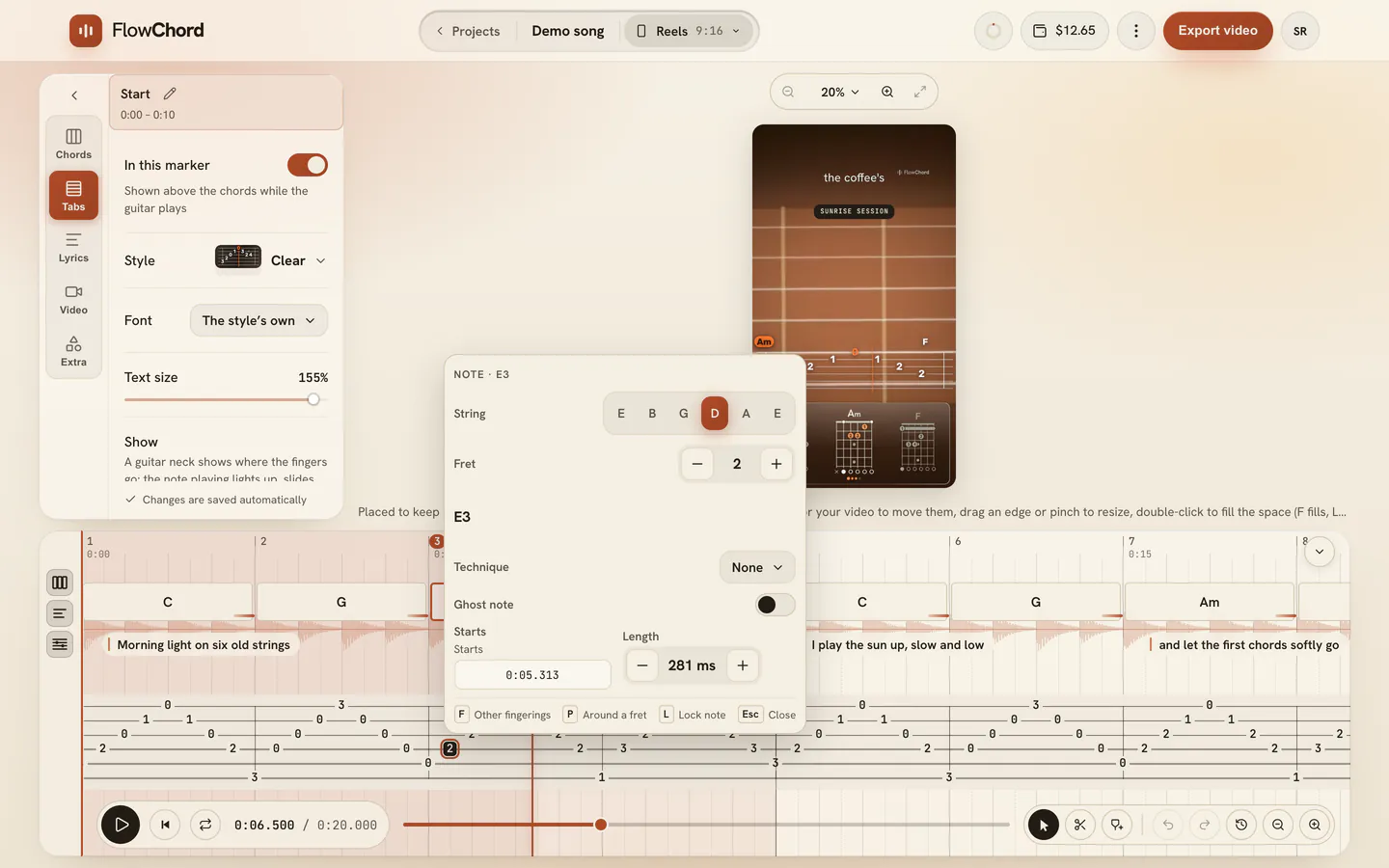
Say how a note is played
- Click a note, then hold Shift and click the next note on the same string — the one you slide, hammer or pull into. A row above the tab’s lines offers what joins them: Slide, Legato slide, Hammer-on, Pull-off and Held over, each with its number.
- Point at one to see it drawn between the two notes, then click it — or press its number. 0 is None. Once you choose, the row closes and both notes are let go.
- For any other technique — a bend, vibrato, a harmonic, a muted note — pick the note and press T, or right-click it and choose Technique. The same row offers every technique; X is Muted, \ is Slide out down and / Slide out up — a slide off the note that lands on no other note, as a tab prints 5\ — and Esc closes it. A bend starts at a whole step: to bend less or more — from ¼ to 2 steps — or to let it back down on the same strike (a bend and release), press E on the note and set Bend by and Release.
The tab’s lines show each technique the way the video draws it: a line for a slide, a curve with h or p for a hammer-on or a pull-off, a curve for a note held over, an arrow up for a bend with how far it goes beside its tip — and a second arrow down with an r when it’s released — a wavy line beside the note for vibrato, and a short slash after the note for a slide out. A note joined to the one before it — slid, hammered or pulled into, or held over — isn’t picked again, so it moves onto the nearest line of the beat grid, in time with the note before it. Undo puts it back.
Delete a note
- Click the note and press ⌫. There’s no confirmation; the next note is picked so you can keep going, and undo brings it back.
To delete a whole passage, draw a box over its notes and press ⌫ (Delete on Windows). Every note picked goes in one step, and one undo brings them all back. The other notes stay where they were, and the chords and the lyrics don’t change.
Fix or clear the same passage everywhere
A transcription tends to make the same mistake every time a passage comes back — and the guitar it hears can include more than the solo, such as a strum or a bass line under it. Fix it once and FlowChord fixes the rest with you.
- Fix a passage by hand: change frets or strings, give a note a slide or a hammer-on, add or delete notes. To clear what isn’t the solo, delete its notes.
- Each change goes, in the same step, to the other places the song plays that passage the way it was first heard. A line above the tab’s lines says how many other places it went to, and undo takes back all of it. A note you drag in time moves there alone, with only the notes a slide, hammer-on, pull-off or tie joins to it: every place keeps its own timing.
- Press Only here to keep the change only where you made it, or open Review: every place is listed by its time and ticked. Untick any you want to leave alone and press Apply — a place you untick stays as it is, and a fix made elsewhere won’t change it again.
- Where the passage comes back only similar — a few frets up, or with a note or two different — the line asks first: open Apply to all, keep the places ticked and press Apply. A place you said yes to takes the rest of your fix there without asking. A change you make inside one of the repeats stays in that place, its own way of playing the passage — Apply to all copies it to the others if you want.
Options
Right-click a note for everything else you can do to it — each item shows its key:
| Item | What it does |
|---|---|
| Other fingerings | The other ways to finger the phrase around the note. See Choose how a phrase is fingered. |
| Around a fret | Plays the phrase with the hand around the fret you choose. |
| Lock note | Settles the note where it is, so no fingering choice moves it. |
| Hide from video | Keeps the note off the video. It stays on the timeline, dimmed. |
| Ghost note | Marks the note as struck softly: the tab writes it in parentheses, “(9)”. Strike fully takes it back. |
| Slur | Draws one slur over the notes picked on a string, from the first to the last — or, for one note, to the next note on its string. Under it, the hammer-ons, pull-offs and legato slides don’t get a slur of their own. Remove slur takes it away. |
| Technique | How the note is played: the same row of techniques, each with its number. |
Keys and the note’s menu
Right-click a note for its menu. With a note picked on the timeline, these keys work:
| Key | What it does |
|---|---|
| ← / → | Go to the previous or next spot along the string — a note, or a line of the grid. With Shift, pick a run of notes. Nothing moves |
| ↑ / ↓ | Go to the string above or below at the same moment — the note there, or an empty spot. Nothing moves |
| ⌘ ← / ⌘ → (Mac) · Ctrl ← / Ctrl → (Windows) | Nudge earlier / Nudge later, by one step of the grid drawn on the timeline |
| ⌘ ↑ / ⌘ ↓ (Mac) · Ctrl ↑ / Ctrl ↓ (Windows) | String up, same fret / String down, same fret. With Shift held too: String up, same pitch / String down, same pitch |
| Enter | Edit note |
| + / - | Fret up / Fret down |
| 0–9 | Type the fret (two digits typed quickly make one fret, like 12); on an empty spot, write a note there with that fret |
| E | Edit note: a quick edit over the note |
| F | Other fingerings |
| P | Around a fret |
| L | Lock note / Unlock note |
| H | Hide from video / Show in video |
| G | Ghost note / Strike fully |
| J | Slur / Remove slur |
| T | Technique: the techniques over the note; a number picks one |
| N | Add note after |
| I | Insert at playhead |
| ⌘ A (Mac) / Ctrl A (Windows) | Select phrase |
| ⌫ | Delete |
| Esc | Closes the line above the tab’s lines, then lets go of the notes picked, then of the note or the empty spot |
Tips
- To make the tab bigger, hold ⌥ (Alt on Windows) and click Guitar tab in the column of buttons at the left of the timeline, or press ⇧ ⌥ 4. The tab shows alone and takes the room, its strings further apart and its numbers bigger, easier to click. Show all brings the chords and the lyrics back.
- A note FlowChord wasn’t sure of is underlined. Double-click it: its window says Check the pitch, and, if you brought a tab file, which note the file has there.
- You can fix a whole phrase without the mouse: click one note, walk with the arrows, type the fret you want, walk on — and hold ⌘ (Mac) or Ctrl (Windows) with an arrow when a note has to move. ⌘ Z / Ctrl Z takes back the last change, ⌘ ⇧ Z / Ctrl Shift Z brings it back; walking around makes no change to undo.
- To start over, Reset tab in the Tabs mode puts every note back the way FlowChord first wrote it.
On a phone
Choose Tab at the top of the timeline panel: the tab’s six strings run down the sheet, low E at the left. Tap a note to pick it and tap it again to open Fix a note, which holds the same fields and lists the places on the neck where the same note sounds, with a fretboard for any other spot; hold your finger on a note for its menu, or on an empty spot to write a note there. Drag a picked note down the song to move it in time — it lands on a moment the recording has a note struck, else on the nearest line of the beat grid — or across the strings to play it on another string. Choose Chords or Lyrics when you’re finished. The same works in a narrow window on a computer.
Common problems
I see blocks, not numbers. You’re zoomed out. Click a block or zoom in with S.
A click added a note when I wanted to move the playhead. A click on a string line writes a note. To move the playhead, click the row just above the lines, or the timeline’s ruler. Undo removes the note.
F, P, L or E changed a chord instead of a note. These keys act on a note only while a note is picked on the tab’s lines. Click the note first.
A note I dragged went back. It couldn’t go there: the string is too short for that fret, or another note is played on that string at the same moment. Drag it somewhere else, or change its fret first.
A note moved after I fixed another one. The same passage comes back there and your fix went to it too (the line above the tab says how many places; Only here takes that back), or you applied a fingering choice, which places the notes around yours. A fix alone never moves the notes around it. Notes you fixed yourself in a place, wrote, dragged or locked are never changed from another place. Press ⌘ Z (Mac) or Ctrl Z (Windows) to take it back.
Notes moved after I changed a chord’s fingering. The tab follows the chord’s diagram: the notes under that chord took the new shape (see Choose how a phrase is fingered). Notes you settled yourself stayed. ⌘ Z takes the chord’s change back, and the tab with it.
A note isn’t on the video. Right-click it and check Show in video. Hidden notes are drawn dimmed on the timeline.
Was this article helpful?
Still stuck?
Write to us and a person on the FlowChord team will answer by email.
Contact us