Guitar tabs: how they're made and where to find them
FlowChord writes the guitar in your recording as a tab. See when it's made, where to find it and when it shows on your video.
Updated October 22, 2026
When you create a project, FlowChord listens to the guitar in your recording and writes it down as a tab: every note as a string and a fret, placed on the song’s beats. You can fix any note in the editor, and the tab can appear on your video above the chords while the guitar plays a riff, a melody or a solo.
Before you start
- The tab is made once, when the project is created, from the recording the chords come from. A project created without one doesn’t get one later.
- The recording needs a guitar you can hear. A song with no guitar gets no tab.
- The tab is included in the song’s charge — there is nothing extra to pay. On a free video, the tab covers the same first 30 seconds the rest of the analysis does.
- If you have a tab file of the song (Guitar Pro, MusicXML, text, or a screenshot of one), you can add it when you create the project: wherever it matches your recording, its notes become the tab. See Bring a tab file as a reference.
Steps
- Create your project as usual (see Create a project).
- Optional: drop your tab file on the dialog with the recording. Its card says Tablature.
- Optional: if you play with a capo, say where it is in the Capo row under the cuts, so the tab is written for the frets your hand plays. A tab file or chord sheet that names a capo fills it in for you. Leave it on Not sure if you’d rather not say: FlowChord then guesses the capo from the chords later.
- Create the project. While it’s being prepared, the processing card shows Making the guitar tab. The editor opens once the tab is ready — or, if it couldn’t be made, opens anyway and tells you why. That wait is only for a tab you’ll show: when no cut has Tabs ticked under Shows in the Create dialog, the tab is still made, but the editor opens without waiting for it, with the tab’s In this cut switch off.
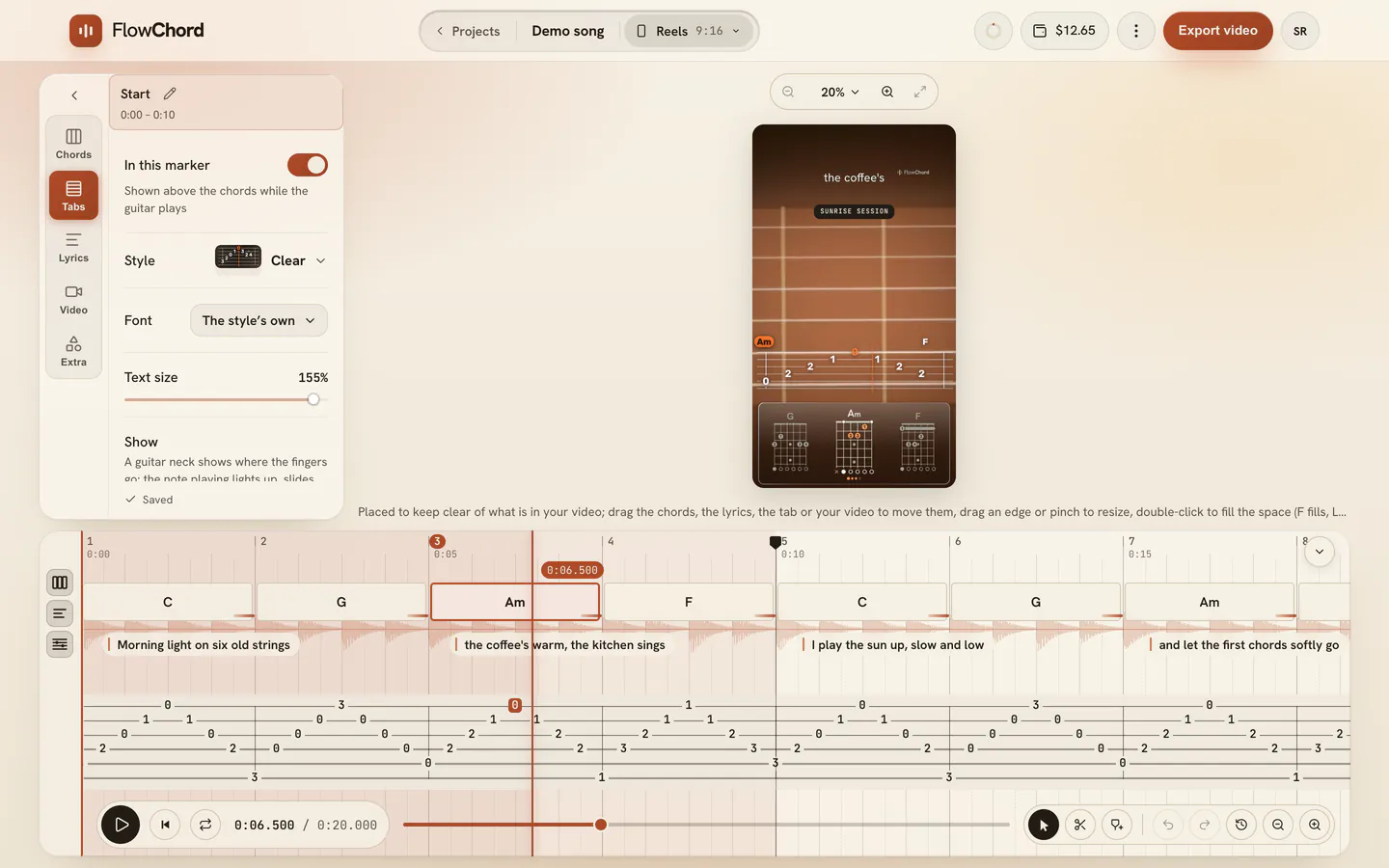
- In the editor, open Tabs on the settings card’s rail, between Chords and Lyrics. Once the tab is ready, the editor opens on Tabs by itself if you brought a tab file without a chord sheet, or if the song has no chords and you brought no chord sheet.
- Look at the timeline under the video: the Guitar tab lane holds the notes on six string lines. If you see rounded blocks instead of numbers, you’re zoomed out — press a block to zoom in on that phrase.
- Press play. On the video, the tab fades in above the chords when the guitar’s notes come near and fades out after they pass.
Options
What you find in Tabs once the tab is there:
| Part | What it does |
|---|---|
| In this cut | Shows or hides the tab on this cut’s video. Off, its lane leaves the timeline too. |
| Style, size and staff options | How the tab looks on the video — see Show the tab on your video. |
| Tuning | The tuning and capo the tab was read for. |
| Reset tab | Puts every note back the way FlowChord first wrote it. It asks you to confirm first. |
The notes themselves are fixed right on the tab’s lines in the timeline: click a string to add a note, drag one to move it — see Fix notes in the guitar tab.
Tips
- The tab sits above the chord band while it shows; the rest of the time you see the chords alone. To show the tab without the chords, choose Tab only in the tab’s look, and cut where the tab shows on its lane on the timeline.
- To keep a passage off the video without deleting it, hide its notes with H. They stay on the timeline, dimmed.
- FlowChord writes only what one hand can play: one note per string at a time, each moment you strike in its own column, and no chord wider than a hand reaches. Notes it heard that don’t fit are left out.
- With a capo, the tab’s numbers count from the capo, like a printed tab, and the staff says where it is — “CAPO 7” over the lines, beside the tempo when it’s shown. See Capo and tuning.
- If you didn’t say the capo when you created the project, the tab is made before the project knows it. When FlowChord guesses it the first time you open the project, or you set or change the capo or the tuning later, the tab is placed on the neck again for it: a few seconds, and nothing is heard again. Notes you fixed or locked stay where they are if they can still be played there, and undo starts again from the new tab.
- Once the tab is ready, the timeline can offer markers where the guitar comes in and where it stops, so you can give the solo its own look. Nothing is added until you press one.
- Tab edits are undone like any other: ⌘ Z on a Mac, Ctrl Z on Windows.
Common problems
The Tabs mode isn’t in the editor. The project has no tab. Tabs are made only when a project is created, so a project made before has none.
The Tabs mode says “No tab this time” with a reason. Press Try again to make it again. The same button appears on the timeline’s lane next to No tab. If you write to support, include the code shown beside the button.
The reason is “no guitar was heard in the song” or “no guitar notes were heard”. FlowChord couldn’t hear a guitar in the recording. Trying again usually gives the same answer; a recording where the guitar is clearer works better.
The reason is “the recording is too long for a tab”. Very long recordings don’t get a tab. A shorter recording of the song will.
The tab doesn’t show on the video. Check that In this cut is on for this cut, that the playhead is near notes, and that those notes aren’t hidden. Each cut, and each shape of a cut (vertical or horizontal), has its own switch.
The tab stops after a few seconds on a free video. A free video’s tab covers only its first 30 seconds. See Pricing.
Was this article helpful?
Still stuck?
Write to us and a person on the FlowChord team will answer by email.
Contact us